
How to enrich your own file with contact pages
Upload a CSV or XLSX of websites or phone numbers and get back the contact page, phone, business email and more for each matched business. It takes a few minutes.
Before you start
- A CSV or XLSX file with up to 5,000 rows and one business per row
- A column with the website or the phone number of each business (business names cannot be matched)
- Enough lead credits: one per matched row
Prepare your file
Make a CSV or XLSX with one business per row, for example the columns Company, Website and Owner. The match is made on a website or a phone number. The data provider looks businesses up by website or phone only, so a column of business names cannot be matched. The limit is 5,000 rows per file.
Open the Enrich my file tab
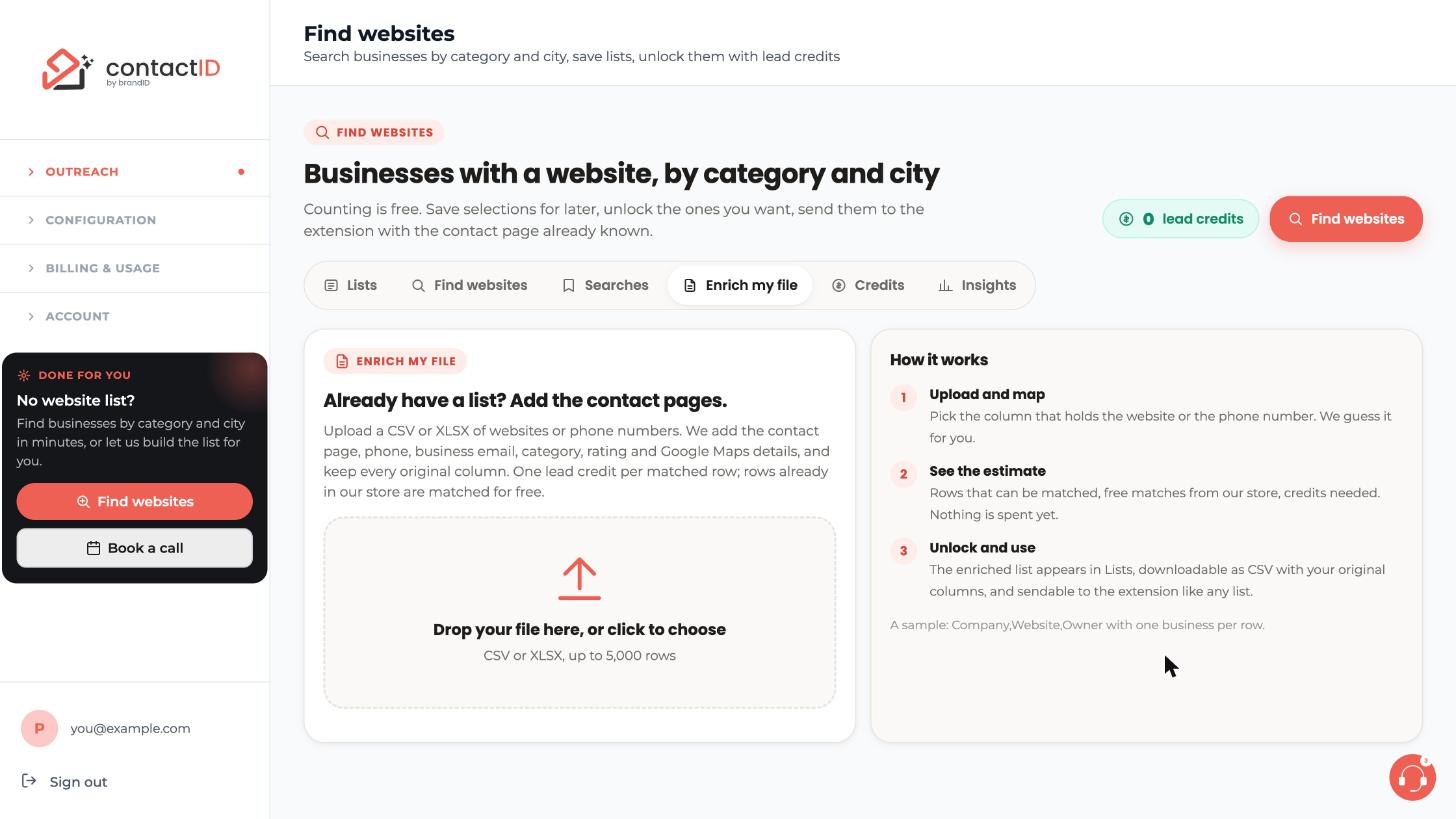
Go to Outreach, then Find websites, and click the Enrich my file tab. The page explains how it works in three steps: Upload and map, See the estimate and Unlock and use.
Upload your file
Drop the file on the box that says Drop your file here, or click to choose, or click the box and pick the file from your computer.
Pick the column to match on
The page guesses the column that holds the website or phone number. Check it and change it if needed. It tells you how many rows have a usable website or phone number, with an example of what it will look up. If your phone numbers are written without a country code, pick the country for them.
Read the estimate
You see how many rows can be matched, how many are already in the contactID catalog, and how many credits are reserved when you unlock. Nothing is spent at this point.
Unlock and enrich
Press Unlock to enrich right there, or do it later from the Lists tab. Each matched row gains the contact page, phone, business email, category, rating, address and Google Maps details. One lead credit is charged per matched row, whether it comes from the catalog or from the data provider. Rows that cannot be matched cost nothing.
Download the file or send it to the extension
The enriched list appears on the Lists tab. Every original column is kept, and you can download it as a CSV. You can also send it to the extension like any list, then check your Agent, your targets and your message before you press Start.
Tips
- Use a website column when you can: it is the most reliable match.
- Businesses from an enriched file carry merge fields such as
{{lead_name}}and{{lead_category}}. Use them in the message body, not in the subject line. - A list made from a file cannot use Find new places.
If something goes wrong
My file has business names but no websites or phones.
Business names cannot be matched. The data provider looks businesses up by website or phone number only. Add one of those columns and upload again.
My file is rejected.
Use a CSV or XLSX with up to 5,000 rows. Split a bigger file into several smaller ones.
The credits reserved look higher than I expected.
One lead credit is charged per matched row, including rows already in the catalog and businesses you already hold. Check the estimate before you press Unlock.
Related how-to guides
Still stuck? We’re happy to help.
Install the extension, start a free trial, or reach out to support.




