
How to create a custom AI prompt
A custom prompt tells the AI what to write at one spot of your pitch. You name it, write the instruction and drop the name into your message. It takes about five minutes.
Before you start
- A contactID account with at least one Agent
- AI Messages turned on for that Agent (see the guide on turning on AI personalization)
- A balance in your AI wallet for testing
Open the Prompts Library
In the dashboard sidebar, under Configuration, click AI Personalization and scroll down to Prompts Library. It holds reusable prompt snippets that you reference in any agent message as {promptName}. Two buttons sit at the top: New prompt and Browse templates. A new library shows No prompts yet.
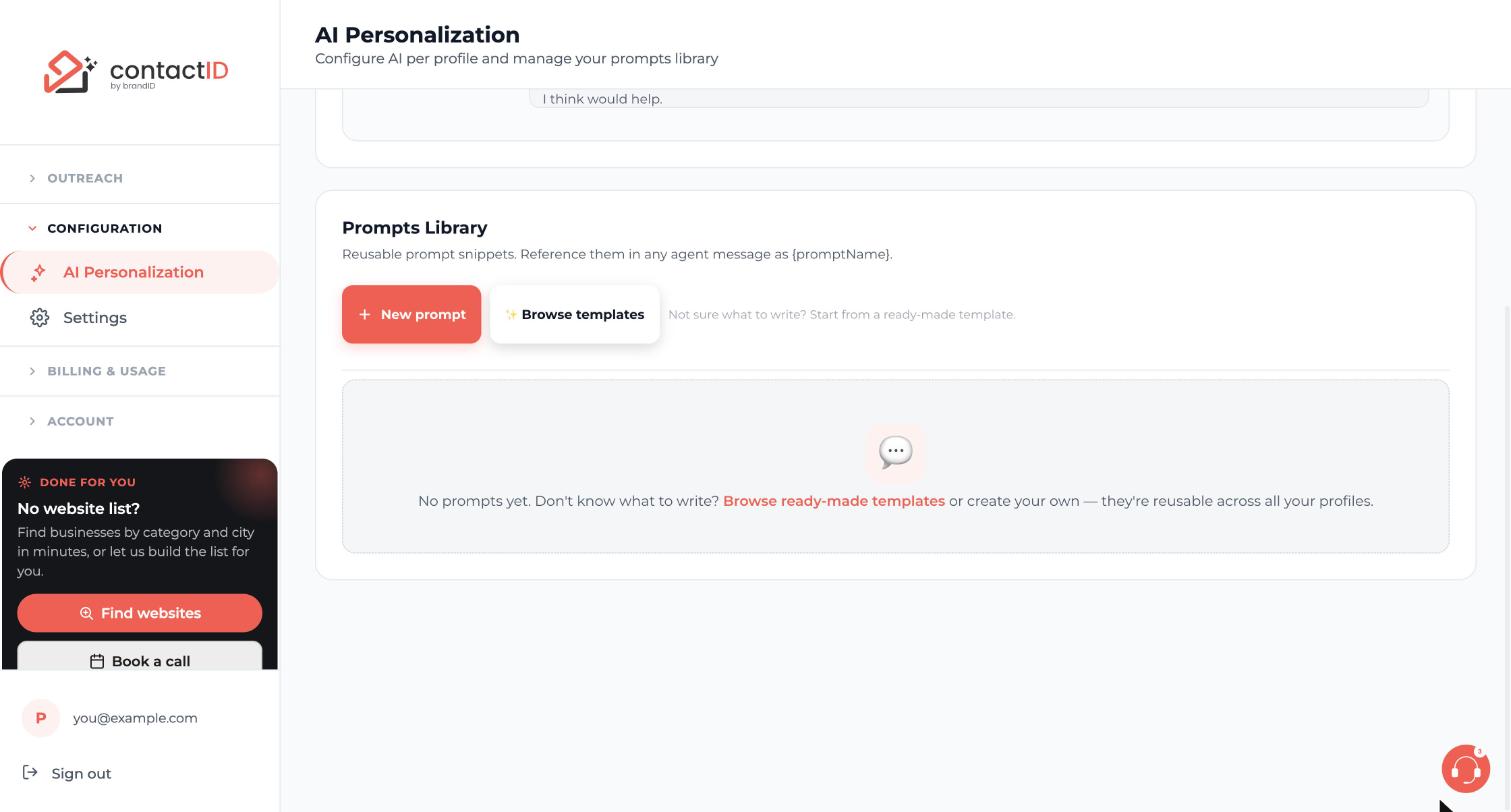
Click New prompt
Press New prompt. A New prompt window opens with two fields: Name and Content, and the buttons Cancel and Save.
You can keep up to 50 prompts, and every agent on your account can use them. Prompts cannot be shared with another account.
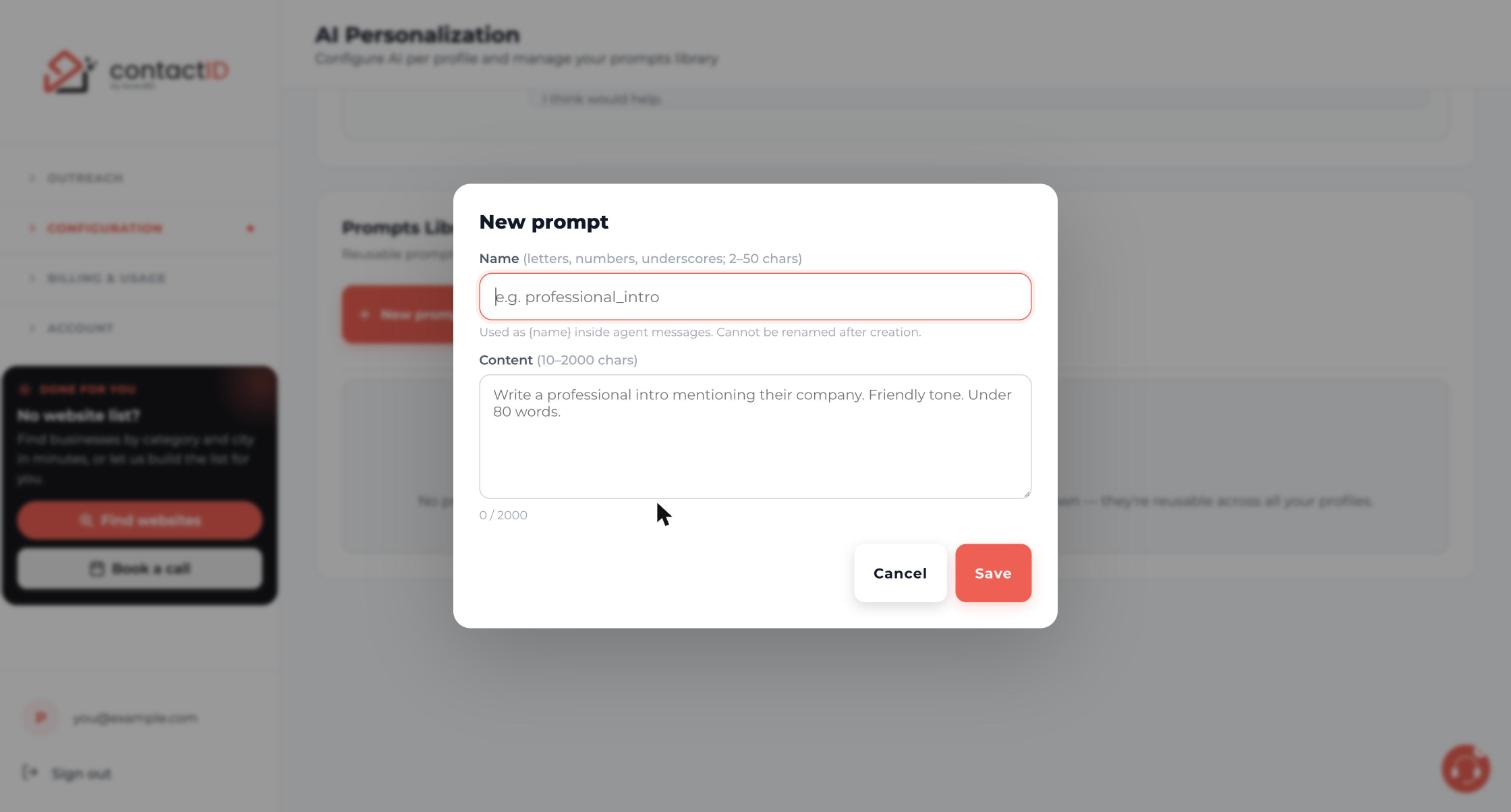
Name the prompt and write the instruction
Name becomes the placeholder you type in your pitch. Use 2 to 50 letters, numbers or underscores and no spaces, for example friendly_intro. The window notes that a name cannot be renamed after creation, so choose it carefully.
Content is what you tell the AI, from 10 to 2,000 characters. A good instruction names the tone, sets a length limit and sticks to what the AI knows. For example:
Write a friendly one-sentence opener for {website_name} that fits a business of its kind. Keep it under 20 words. Do not mention news, posts or products you were not told about.
Inside the instruction you can use {website_name}, {website_url} and {target_industry}. contactID fills them before the AI sees the instruction.
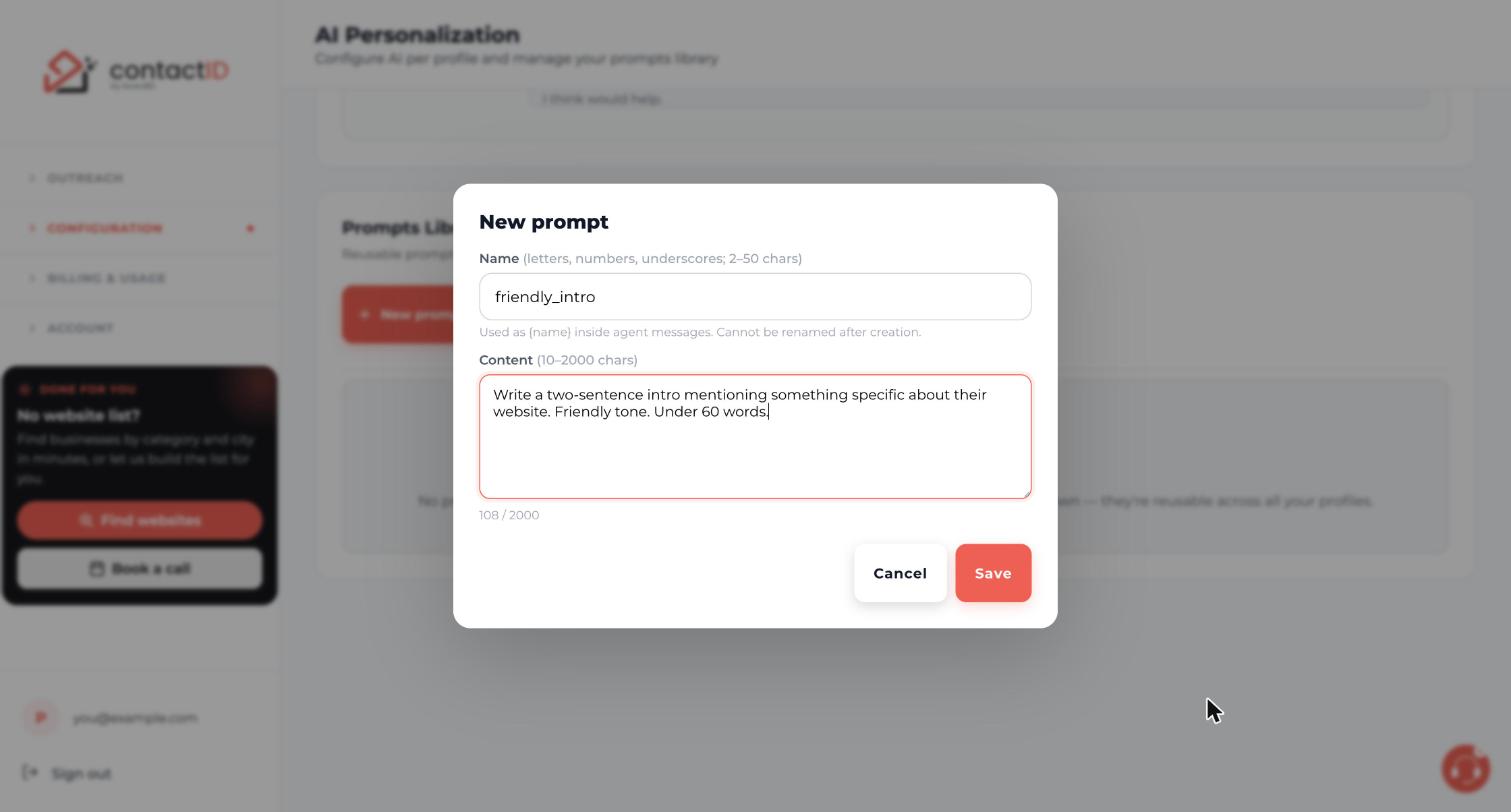
Save the prompt
Press Save. The prompt now appears in your Prompts Library. The extension has the same form under Your message, Manage Prompts, New Prompt, with the fields Prompt name and Prompt instructions and the button Create Prompt.
Use the placeholder in your pitch
On the Agents page press EDIT on your agent and type the prompt’s name in single curly braces where the AI text should go:
Hi, {friendly_intro} I run a small studio that helps local businesses get more enquiries from their website. Could I send you two quick ideas?
Only that spot is written by the AI. Placeholders are not case sensitive, but the name must match a saved prompt. A name with no prompt is left as literal text, and a message still holding it is not sent. Nested placeholders are not supported.
Test it before a big batch
Make sure AI Messages is on for the agent. In the extension open the Targets tab, add three or four websites from different industries and let the check finish. In Preview on a site pick each one and press AI sample. Each sample costs the same as one AI message, a fraction of a cent on the default model, and nothing is sent. If the lines read badly, tighten the instruction and test again.
Edit or delete a prompt later
In the extension open Your message, Manage Prompts, click Edit on the prompt, change the instructions and press Update Prompt. Delete removes it, and the dashboard’s Prompts Library has a delete option too.
Tips
- Set a length limit in every instruction, such as under 20 words. Short answers also cost less.
- Each different placeholder is one AI request per website, so one or two placeholders per pitch keeps costs low.
- Add an example of a good output to the instruction. One or two examples sharpen the result.
- Stuck for words? Install a ready-made template and edit it, see the guide on ready-made AI prompt templates.
If something goes wrong
The Save button does not work.
Check the limits: Name must be 2 to 50 letters, numbers or underscores with no spaces, and Content must be 10 to 2,000 characters.
My placeholder appears as literal text in the message.
A placeholder stays unfilled when AI is off for the agent, when no prompt with that name exists, or when the AI provider failed for that website. contactID then does not send that website and no credit is used. Check the spelling, turn on AI Messages and retry.
The AI text sounds generic or makes things up.
The AI sees only the website’s name and address and your details. Make the instruction more precise about tone and length, avoid asking for specifics from the website, and test again with AI sample.
Related how-to guides
Still stuck? We’re happy to help.
Install the extension, start a free trial, or reach out to support.




