
How to check your results in Analytics
Open the Analytics page to see how many websites were sent, which failed and why, and exactly what contactID typed into each form. It takes a few minutes.
Before you start
- A contactID account. Analytics fills in as websites are checked and sent
- Optional: at least one run already started from the extension
Open the Analytics page
On the dashboard, open the sidebar group Outreach and click Analytics. From the extension you can also press the Analytics button in the run panel of the Send tab, or choose View Analytics in the More actions menu (three dots).
Every submission is recorded on your account, so Analytics shows your full history, not only the current run.
Pick a date range and read the summary cards
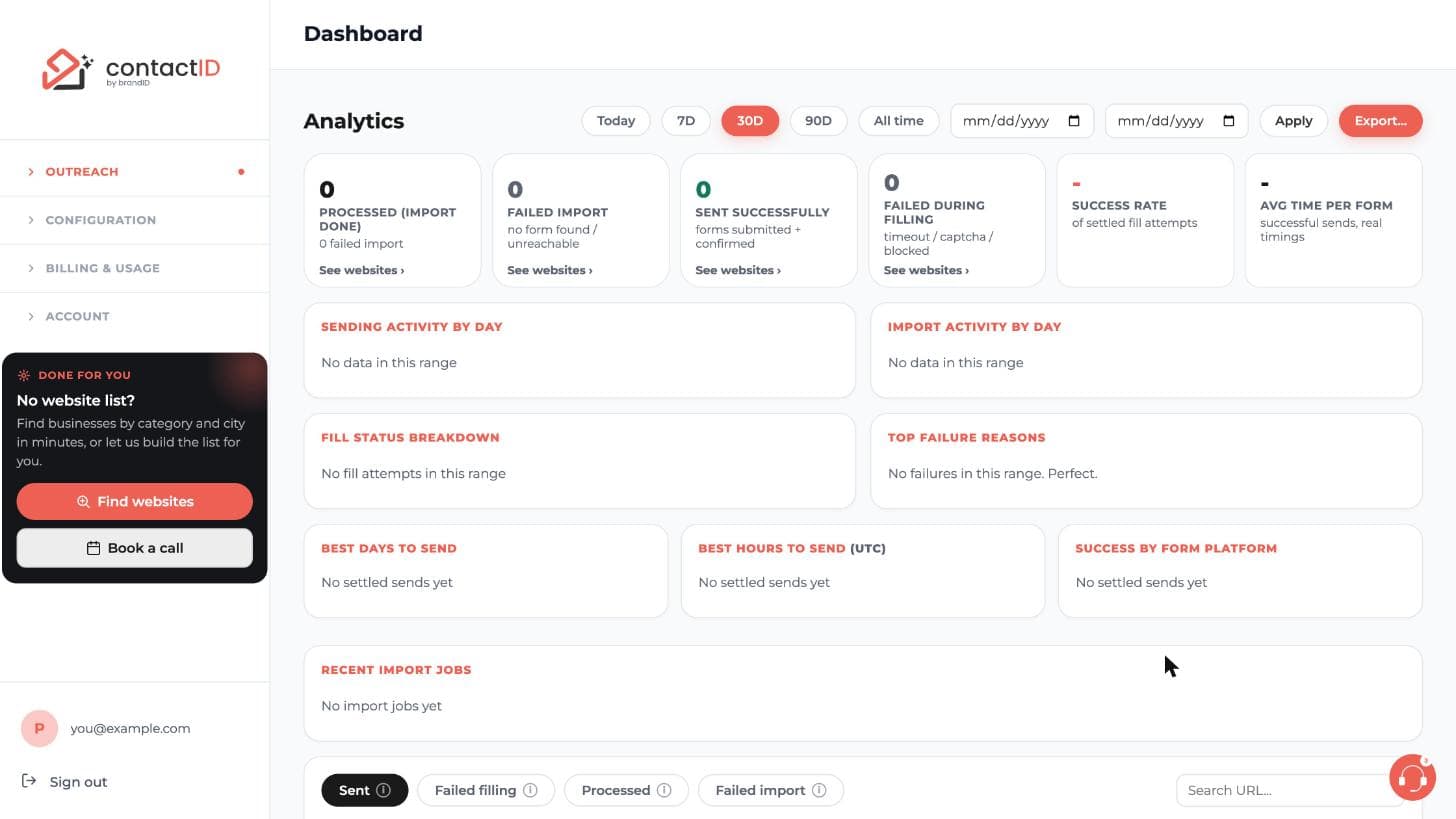
At the top of the page choose a range: Today, 7D, 30D, 90D, All time, or enter your own start and end dates and press Apply. The cards below update to match:
- Processed (import done): websites checked, with the count that failed import.
- Failed import: no form found or unreachable.
- Sent successfully: forms submitted and confirmed.
- Failed during filling: timeout, captcha or blocked.
- Success rate and Avg time per form.
Each card has a See websites link that jumps to the matching list.
Look at the charts
Scroll down for the charts for your chosen range:
- Sending activity by day and Import activity by day
- Fill status breakdown
- Top failure reasons
- Best days to send and Best hours to send (UTC)
- Success by form platform
- Recent import jobs, showing for each job how many websites had a contact form found and how many failed the check
Charts such as best days and hours stay empty until you have settled sends. There are no per-domain, per-category or per-agent charts.
Switch between the website lists
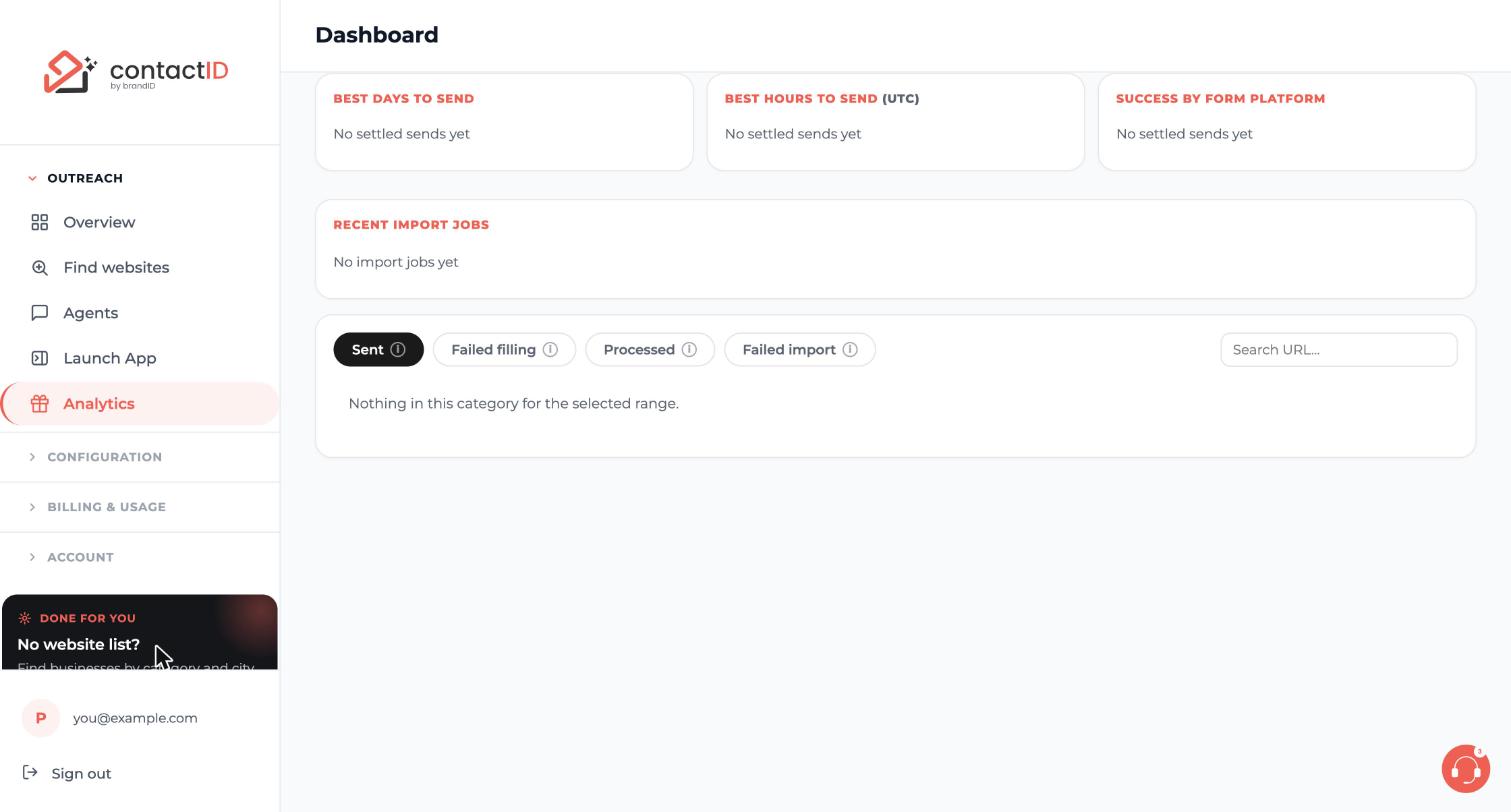
Below the charts is a row of tabs: Sent, Failed filling, Processed and Failed import. Click a tab to list the websites in that group for your date range. To find one site quickly, type part of its address into Search URL.
If a tab says Nothing in this category for the selected range, widen the date range, for example to All time.
Open a website to see what was typed
On the Sent and Failed filling tabs, click a website to open its detailed view. It shows when it was sent, the total time, page load, form detection and filling times, the submit method, how any CAPTCHA was handled, whether a custom message was used and the extension version.
It also lists the form fields on that website with the exact values contactID typed into each one: your name, your email, the message and any box that was ticked. The website address is a link, so you can open the site itself.
Understand the statuses
- Sent: the form was submitted and the site confirmed it. One website credit was used.
- Sent, not confirmed: the form was submitted and no error appeared, but the site showed no confirmation. It counts as sent, is not sent again, and uses no credit unless the confirmation shows up a few seconds later.
- Failed: the form was found but the send did not complete. Open the website to read the reason. No credit is used.
- No form: nothing was attempted. No credit is used and it is not counted in the success rate.
Export your history
Click Export… at the top right of the page. Choose CSV or JSON, then the current view or everything sent and failed in the date range. Pick a column preset (Default, Failures, Successes, Timings, Audit or All columns) or your own columns, and optionally one row per form field. Each export holds up to 20,000 rows and downloads at once. There is no scheduled or emailed export.
Tips
- Clear Completed and Clear All on the Send tab only empty that list. Your Analytics history stays on your account and nothing is deleted on a schedule.
- Compare success rates across different lists before drawing conclusions. A curated list and a scraped list can behave very differently.
- For payments and credit changes use Transaction History. Analytics is for websites and sends.
If something goes wrong
Analytics shows zeros or Nothing in this category.
The page only shows the date range you selected. Try All time. If you have not run anything yet, the cards stay at zero and the charts say there are no settled sends.
A website failed. How do I find out why?
Open the Failed filling tab, click the website and read the reason. The Top failure reasons chart groups the most common ones. A failed website does not use a credit, and you can retry it from the Send tab.
I cleared websites on the Send tab. Are they gone from Analytics?
No. Clearing removes websites from the Send tab list only. There is no button that deletes Analytics history.
Can I change a Sent or Failed status by hand?
No. A status reflects what contactID observed at the moment of the send, and it cannot be reclassified.
Related how-to guides
Still stuck? We’re happy to help.
Install the extension, start a free trial, or reach out to support.




