
Social icons are the small round icons under your profile that send visitors straight to your other accounts. This guide covers everything: adding an icon, entering the right link for each platform, reordering and hiding icons, and styling their shape, colour and position.
Quick answer
Open the editor, click Social Channels in Pinned Items, click + Add Channel, pick a platform, paste your profile link, and click Add to brandID. The icon appears under your profile right away.
Before you start
- You need a brandID page open in the editor. If you have not made one yet, start by creating your first page.
- Social icons are available on every plan, including the free Trial.
- Have the web address of each account ready, for example the link to your Instagram or YouTube profile.
Step by step
-
1
Open the Social Channels manager
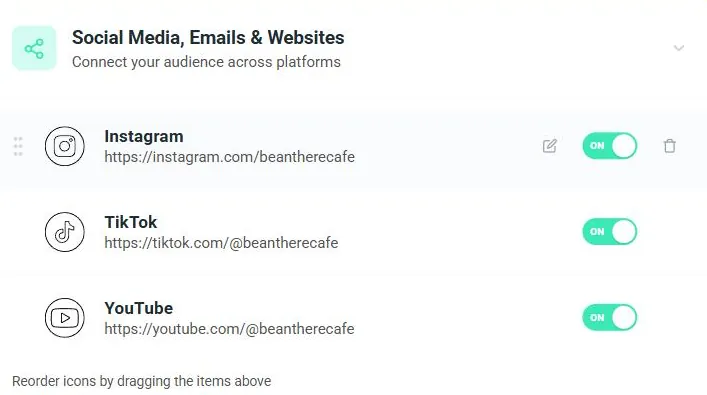
On the Links & Products tab, click Social Channels in the Pinned Items row. This opens the Social Media, Emails & Websites block, where all your icons are listed. Each row shows the platform, its link and an on/off toggle; hover a row to reveal the edit pencil and the delete bin, and use the dotted handle on the left to drag it.
-
2
Click + Add Channel
At the bottom of the list, click the dashed + Add Channel button to open the platform picker.
-
3
Pick a platform
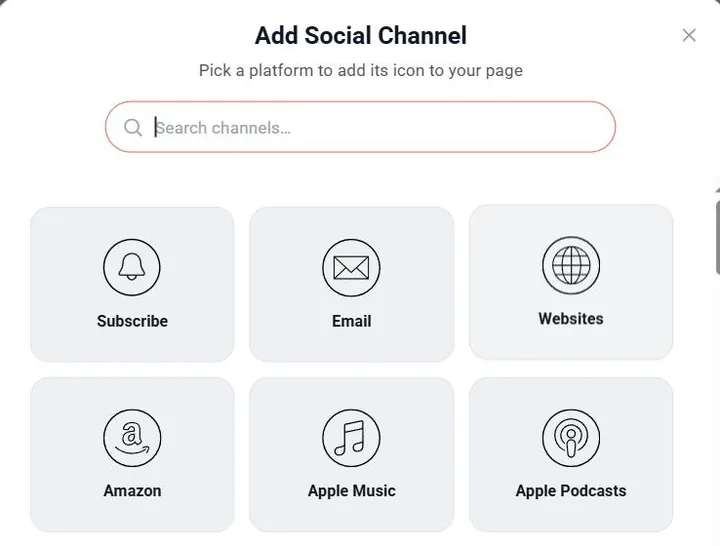
The Add Social Channel window opens. Search by name or scroll the grid. brandID supports a long list, including Instagram, TikTok, YouTube, Facebook, X (Twitter), LinkedIn, Snapchat, Threads, Pinterest, Spotify, Apple Music, Apple Podcasts, Amazon, Etsy, Twitch, Kick, Telegram, WhatsApp, Signal, GitHub, Patreon, Substack, Mastodon, BeReal, Clubhouse, Bandcamp, SoundCloud and Cameo, plus the App Store and Play Store. The same window also offers Email, Websites and Subscribe.
-
4
Enter your profile link
Each platform asks for its own address and shows an example underneath, such as https://facebook.com/yourpage. Paste the full link to your profile. Instagram also accepts just your handle, and TikTok accepts the @handle form. brandID checks that the link matches the platform you picked, so use that account’s real address. Leave Publish on your page switched on, then click Add to brandID.
-
5
Your icon is live
The new icon joins the row of icons under your profile and appears in your list. Repeat for each account you want to share.
Manage your icons
- Reorder: drag the dotted handle on the left of any row to change the order the icons appear in.
- Hide: flip a row’s toggle off to hide an icon without deleting it, then back on to show it again.
- Edit: click the pencil to change the link.
- Delete: click the bin to remove an icon for good.
Style your icons
Scroll to the Style section under your icons to change how they look.
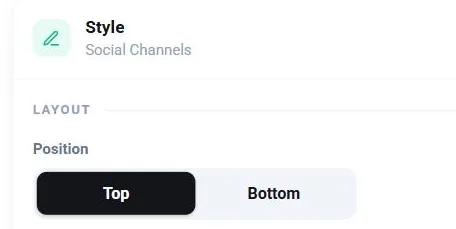
Position. Choose whether the icons sit at the Top, just under your name, or at the Bottom of your page.
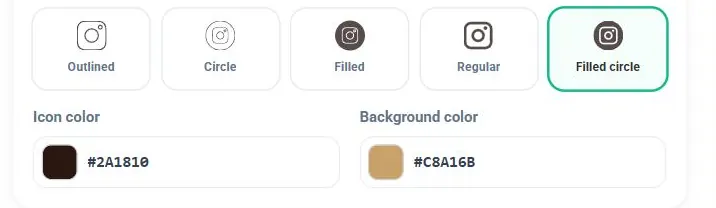
Shape. Pick from five shapes: Outlined, Circle, Filled, Regular and Filled circle.
Colours. Set the Icon color and the Background color so the icons match your page. Keep enough contrast between the two so the icons stay easy to see.
If something looks off
- “This link doesn’t match the platform.” You pasted an address that does not belong to the platform you chose. Use that account’s real profile URL (or, for Instagram, your handle; for TikTok, the @handle form).
- Visitors cannot see an icon. Check the row’s toggle is on, and that your page itself is set to live.
- Too many icons. A tidy row of your most active accounts reads better than a long one. Hide the rest rather than deleting them.
Key takeaways
- Add icons from Social Channels, then + Add Channel.
- Each platform needs its own profile link, and brandID checks it matches.
- Drag to reorder, use the toggle to hide, and the bin to delete.
- Style the shape, colours and Top or Bottom position in the Style section.
- Social icons work on every brandID plan.
Keep building
Round out your page by adding your main links, restyling your buttons and fonts, and sorting everything into tabs with the Top Menu.