
Discord Automation
Connect a Discord bot with just a token, then automate slash menus, keyword DMs, channel replies, buttons, embeds, and modals.
Discord works a little differently from DMpro’s other platforms: instead of an OAuth login popup, you create a bot in Discord’s own Developer Portal and paste its bot token into DMpro.
- In the Discord Developer Portal, create an application, add a bot to it, and copy the bot token.
- In DMpro, go to Settings → Connected accounts or Integrations and click Connect Discord.
- Paste the bot token into the Bot token field and save.
- Confirm the account shows Active, then use the invite link DMpro gives you to add the bot to your server (and, optionally, let members install it as a personal app).
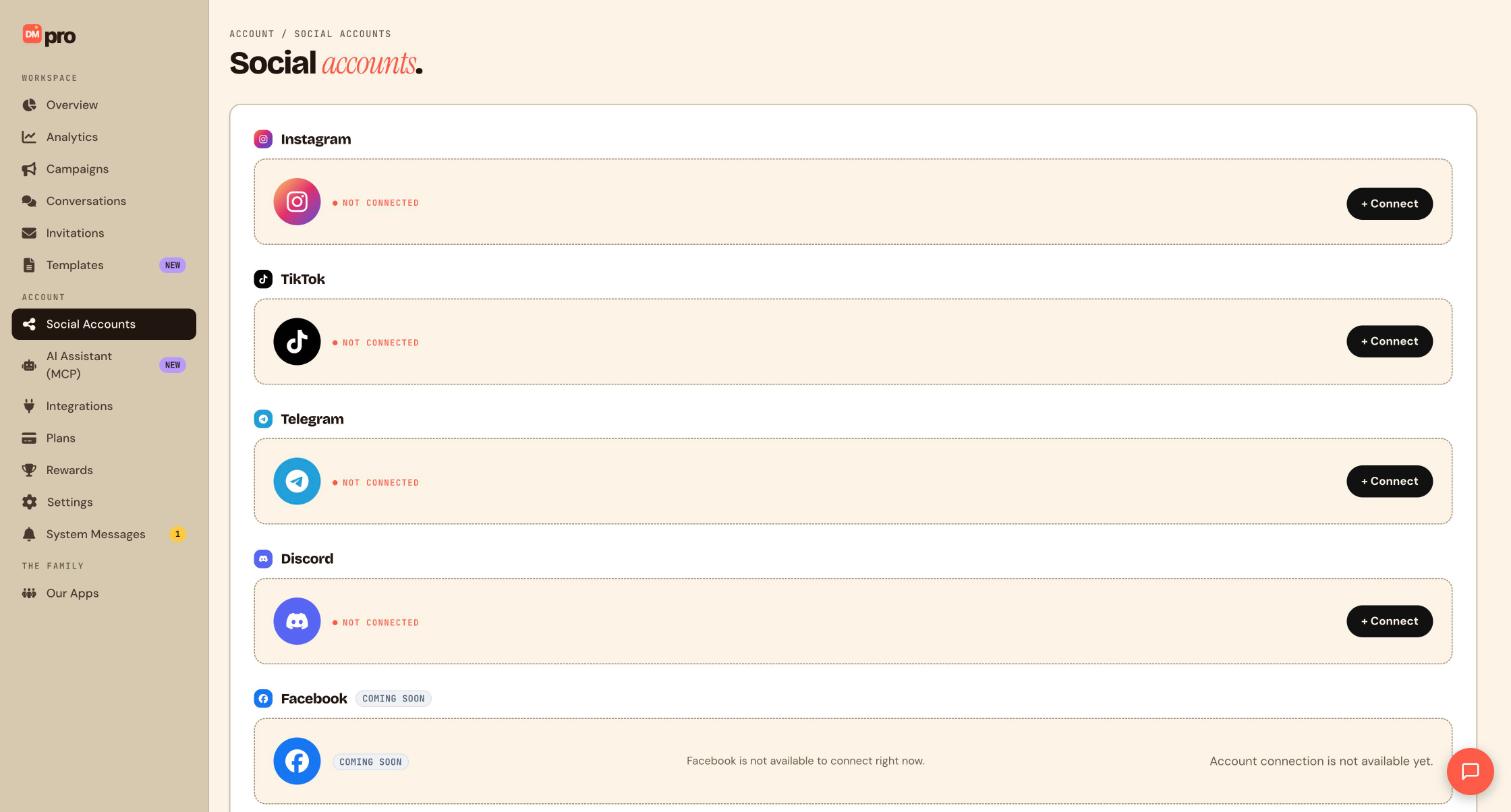
Once you save a valid bot token, DMpro handles the rest of the setup for you:
- Verifies the token belongs to a real bot application
- Points Discord’s interactions system at your DMpro account so button taps, selects, and slash commands reach your campaigns
- Registers the global
/startslash command, including support for an optional referral value - Opens a live connection to Discord so DMpro can hear free-text messages, member joins, and voice activity as they happen
- Gives you an invite link to add the bot to your server, plus a personal-install link if you want members to be able to add the bot to their own account
You don’t need to configure webhooks, intents, or command registration by hand, all of that happens automatically when you connect.
DMpro listens to Discord through two channels working together, and you don’t have to configure either one yourself:
| Channel | Handles |
|---|---|
| Instant responses | The /start menu, button taps, select menus, and modal form submissions. These need to reply the moment a member interacts, so this path is always on. |
| Live connection | Free-text keyword messages (DM or channel), members joining your server, and members joining or leaving a voice channel. |
Both are established automatically the moment you connect your bot token, there’s nothing extra to set up on your end.
If your account admin turns off the live connection, your /start menu and every button, select, and modal keep working normally. What stops working is anything that depends on DMpro overhearing free text or activity in real time:
- Keyword-triggered DMs and channel messages
- Member join automations
- Voice channel join/leave automations
| Trigger | Fires when | Example |
|---|---|---|
| Start menu | A member runs the /start slash command, optionally with a referral value attached | Bot shows a menu: Courses / Community / Support |
| Received message | A member DMs the bot, posts in a server channel, or either, depending on how you set it up | DM says PRICE, or someone posts #help STATUS |
| Component press | A member taps a button or picks an option from a select menu you sent earlier | Fan taps a menu button from a previous message |
| Member join | Someone joins your server | Automatic welcome DM |
| Voice join / leave | Someone enters or leaves a voice channel | Welcome message when someone joins your voice lounge |
Component press, member join, and voice join/leave are new to Discord, none of DMpro’s other platforms currently offer join or voice-based triggers.
Received message is one unified trigger that covers bot DMs and server channel posts, you choose which source (or both) a given campaign listens to.
For channel messages, you also choose a mention mode:
- Required: the bot must be @mentioned for the message to trigger the campaign
- Optional: the campaign fires whether or not the bot is mentioned
- Both (default), covers mentioned and unmentioned messages
This makes channel automations flexible: you can build a quiet keyword listener across an entire channel, or one that only responds when it’s directly called out.
Yes. The /start command accepts an optional referral value, so a link or campaign source can carry through into the automation, similar to a referral deep link on other platforms.
- A referral value can combine a keyword with up to 3 custom field keys
- Values are separated with a
*character - The combined referral value has a 64 character limit
| Action | What it does |
|---|---|
| Send DM / message | Text and media direct to the member, up to 2,000 characters |
| Channel reply | Replies in the server channel instead of DM, for use with channel-based triggers |
| Send buttons | Clickable buttons, including URL buttons that open a link |
| Send select | A dropdown-style menu of options for the member to choose from |
| Send embed | A styled rich card with title, description, and fields |
| Send modal | A pop-up form Discord shows the member to fill in |
| Send sticker | Discord sticker attached to a message |
| Call webhook | Sends flow data to your own system; can be personalized with the member’s last button tap or menu selection |
| AI response | One-time or continuous AI-generated replies |
- Text messages: 2,000 characters maximum (Discord’s own limit, lower than Telegram’s 4,096)
- Buttons: up to 5 rows of 5 buttons each (25 total) on a single message
A few send types and rules that exist on other platforms (mostly Telegram) aren’t available on Discord, because Discord’s own client doesn’t support them:
- Location, contact card, invoice, GIF, and media album sends are not supported
- Request contact is not supported (it’s a Telegram-only reply-keyboard feature)
- The must-follow-account ground rule (available on some platforms) doesn’t apply to Discord
| Status | Meaning |
|---|---|
| Active | Connected and running, your campaigns can publish and fire |
| Inactive | Paused without unlinking, campaigns won’t fire until you reactivate |
| Disconnected | The connection has dropped (often an invalid or revoked bot token) and needs to be relinked |
| Deleted | The account has been removed from DMpro |
Only Active accounts can be attached to campaigns. You can pause, unlink, relink, or search connected Discord accounts from Integrations and Settings, the same as any other platform.
Discord and Telegram are DMpro’s two bot-based platforms, so they share a lot structurally (both use Paths and Wait for reply branching), but they differ in a few important ways:
| Area | Telegram | Discord |
|---|---|---|
| Connect | BotFather token | Bot token (interactions and live connection set up automatically) |
| Entry point | /start deep link + inline menu | Slash /start (+ referral), server and/or personal install |
| Channel scope | Bot chat only | DM or server channel, with configurable mention mode |
| Extra triggers | Referral URL | Component press, member join, voice join/leave |
| Buttons | Inline keyboard | Message components, selects, modals, and embeds |
| Rich sends (location, contact, invoice, albums) | Supported | Not supported |
| Text limit | 4,096 characters | 2,000 characters |
A few ideas to get started, all buildable with the triggers and actions above:
- Onboarding slash menu: member runs
/startand picks “Free course,” bot DMs the course link with [Module 1] [Module 2] buttons - Support keyword DM: member DMs the bot
HELP, bot replies with an AI response or a select-menu FAQ list - Channel keyword status: member posts
STATUSin a channel (mention mode optional or required), bot replies right there in the channel - Welcome on join: new member joins the server, bot DMs “Welcome to the server! Here’s how to get started.”
- Referral welcome: member runs
/startwith a referral value attached, bot DMs a personalized “Welcome! You were referred by a friend.”
Still stuck? We’re happy to help.
Create your DMpro account, see pricing, or reach out to support directly.




