Sharing your Discord username works fine inside the app, but the moment you want someone to reach your account from Instagram, a stream overlay, or an email signature, that username gets clumsy fast. Learning how to share your Discord profile link solves that. A profile link is a single, tappable URL that opens your Discord account directly, so friends, collaborators, and community members skip the search bar entirely.
Discord does not hand you a ready-made profile URL by default, which is exactly why so many people get stuck. The good news: the workaround takes about 30 seconds once you know where to look, and you can make it far more shareable by pairing it with a link-in-bio tool. Below, you will learn every method to create and share a Discord profile link, how it works on desktop and mobile, and how to fix the errors that stop links from opening.
Key Takeaways
- A Discord profile link follows the format
discord.com/users/YOUR-USER-IDand opens your account in one click. - To create it, enable Developer Mode, copy your User ID, then paste it into the link format.
- The recipient must be logged in to Discord for the profile link to open correctly.
- Since 2023, you can also share your unique @username, which is easier to remember than the old name-plus-tag combo.
- For creators, putting the link on a bio page makes Discord profile sharing trackable and consistent across every platform.
Discord Profile Link Sharing Methods Compared
Before the step-by-step walkthrough, here is a quick comparison of the main ways to share your Discord profile link. Each method has a different trade-off between speed, memorability, and how well it works for a public audience.
| Method | Best For | Ease | Works For Strangers? |
|---|---|---|---|
| Direct profile URL | DMs, chats, quick sharing | Medium | Yes, if they are logged in |
| Unique username | Verbal sharing, business cards | Very easy | Yes, they search it manually |
| QR code | In-person events, print | Easy | Yes |
| Bio page / branded link | Creators and public profiles | Easy | Yes, plus click tracking |
What Is A Discord Profile Link?
A Discord profile link is a direct URL that opens your account, built in the format https://discord.com/users/YOUR-USER-ID. Instead of asking people to search your username, you hand them one link that takes them straight to your profile popup, where they can add you or send a message.
This matters more than it used to. As of 2026, Discord’s own documentation confirms that every account carries a unique multi-digit User ID, and that ID is the key ingredient in your Discord user link. Discord has grown to more than 200 million monthly active users, so a clean, clickable link is the difference between a new connection and a lost one when your audience is that large.
One important detail: a profile link is not the same as a server invite. A server invite (the discord.gg/ style link) brings people into a community. A profile link points to you personally. If your goal is Discord profile sharing for networking or collaboration, the user link is the one you want.
How To Share Your Discord Profile Link Step By Step
To share your Discord profile link, enable Developer Mode, copy your User ID, and paste it into the URL format discord.com/users/ID. The steps differ slightly between desktop and mobile, so here is each one in full.
Share Your Discord Profile Link On Desktop
The desktop app and browser version follow the same path, and it is the fastest place to grab your Discord user link.
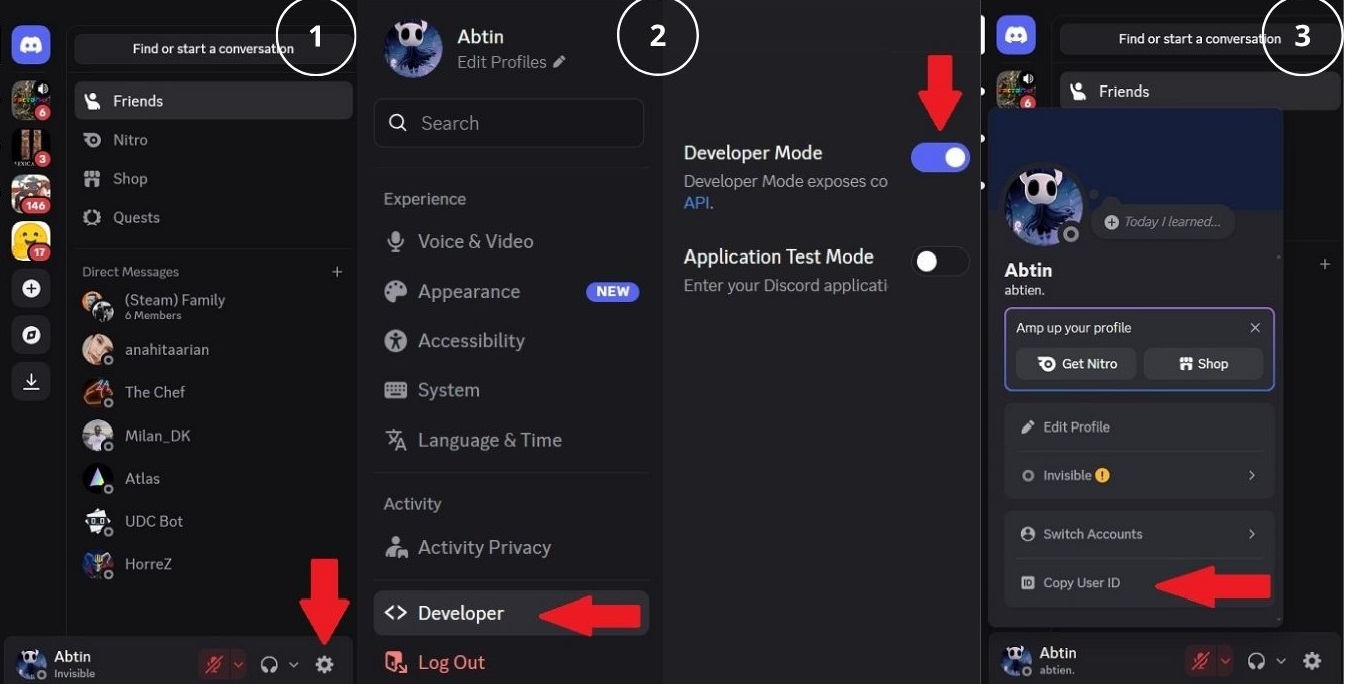
- Click the gear icon (User Settings) in the bottom-left corner.
- Open Advanced in the left menu and toggle Developer Mode on.
- Return to the app, then click your profile picture in the bottom-left corner.
- Select Copy User ID (or right-click your avatar and choose the same option).
- Paste the ID into
https://discord.com/users/to complete your profile link, then share it anywhere.
Share Your Discord Profile Link On Mobile
The mobile steps are nearly identical on Android and iOS, with one extra tap to reach Developer Mode.
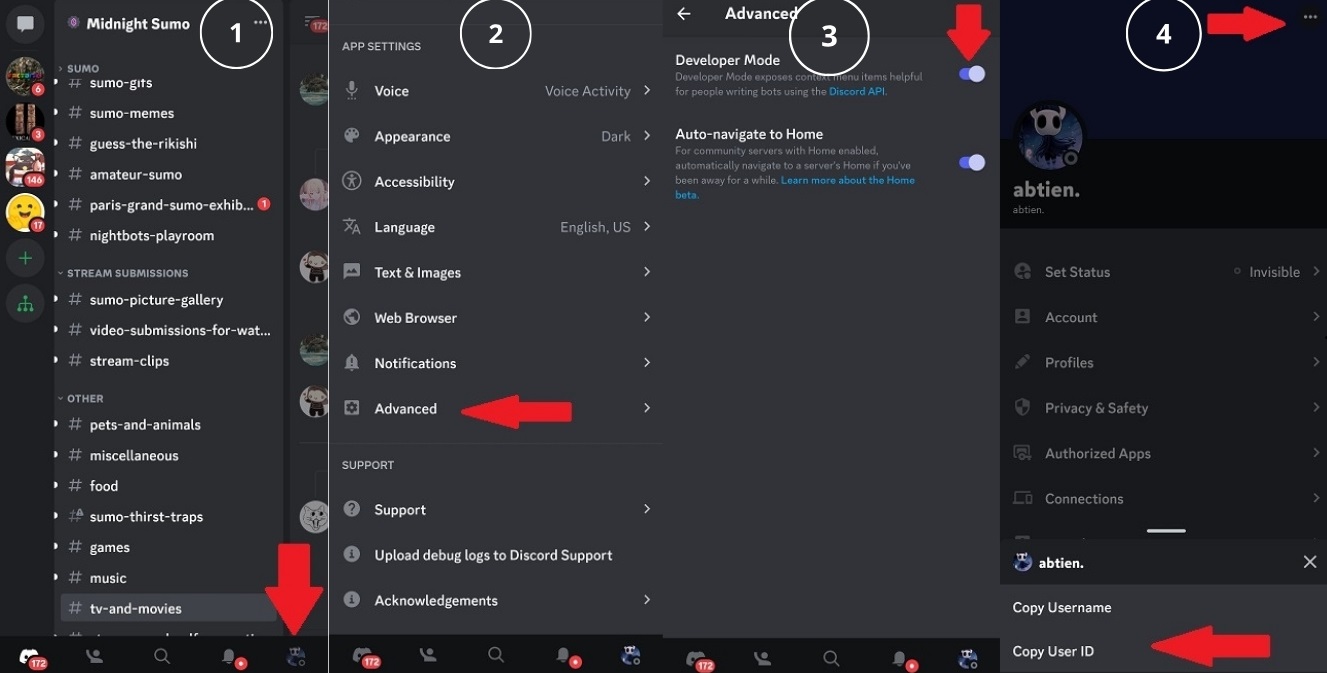
- Tap your profile picture in the bottom-right corner to open settings.
- Scroll to App Settings and tap Advanced.
- Toggle Developer Mode on.
- Go back, open your profile, and tap the three-dot icon, then Copy User ID.
- Add the copied ID to the
discord.com/users/format and paste the finished Discord profile link wherever you need it.
Share Your Discord Username Instead
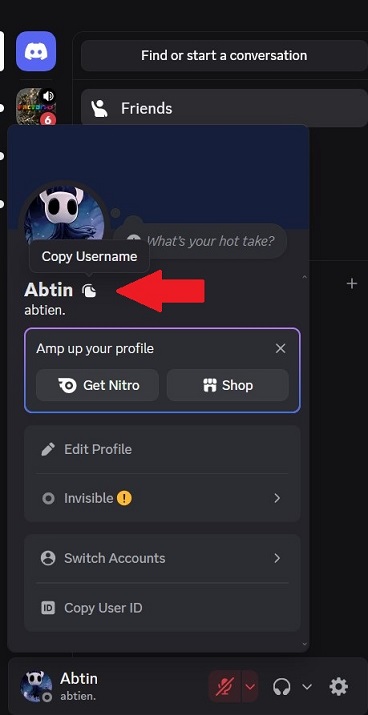
In 2023, Discord replaced the old name-plus-discriminator system (like Name#0001) with unique usernames. That change made it possible to share your Discord account with a simple, memorable handle rather than a code. To copy yours, open User Settings, and next to your display name click the copy icon.
Sharing a username is ideal when you cannot rely on a clickable link, such as on a podcast, a printed flyer, or a quick verbal introduction. The trade-off is that the other person has to type it into the search bar, while a full Discord user link opens your profile in one tap.
4 Ways To Share Your Discord Profile Link
Not every situation calls for the same approach. These four methods cover everything from a private DM to a public creator profile, and each one keeps Discord profile sharing simple for the person on the other end.
Copy Your Direct Profile URL
The direct URL method turns your User ID into a working Discord profile link that opens your account popup. It is the most universal way to share your profile because it works inside Discord DMs, on social platforms, and in messaging apps without any extra tools.
- No third-party tools needed
- Opens the profile in one click
- Free and permanent
- Requires enabling Developer Mode first
- The long ID looks unbranded
- Recipient must be logged in
Recommendation: Use this as your default when you need to share a Discord account quickly and the recipient already uses the app.
Share Your Unique Username
Sharing your unique username is the lowest-friction option when a clickable Discord user link is not practical. Because Discord moved to single, unique handles, you can now share your Discord profile by name alone and let people find you through search.
- Easy to say and remember
- No Developer Mode required
- Works everywhere, online or off
- Not clickable
- People must search manually
- Typos lead to the wrong account
Recommendation: Pair the username with a link whenever you can, so people have both a memorable handle and a one-tap Discord profile link.
Generate A QR Code
A QR code turns your Discord profile link into something people can scan in person. You paste your profile URL into any free QR generator, then place the code on a slide, a flyer, or a stream overlay so a phone camera opens your profile instantly.
- Perfect for offline-to-online
- No typing for the recipient
- Looks clean on print and video
- Needs a camera to scan
- Static codes cannot be edited later
- Useless in text-only channels
Recommendation: Use a dynamic QR code so you can update where your Discord user link points without reprinting anything.
Use A Branded Bio Page Link
A branded bio page puts your Discord profile link alongside your other channels on a single, tidy URL. Instead of pasting a raw ID, you share one memorable page that houses your Discord user link, and you can see how many people click it. Many creators pick this route from a shortlist of Linktree alternatives.
- Clean, branded, memorable
- Tracks clicks and traffic sources
- Holds every link in one place
- Adds one setup step
- Sends people through a landing page first
Recommendation: Choose this if Discord profile sharing is part of a bigger brand, since a bio page keeps your link consistent everywhere.
Where To Share Your Discord Profile Link
Creating the link is only half the job. Where you place it decides how many people actually use it. With users spending roughly 94 minutes a day on Discord, an easy-to-find link turns casual viewers into active community members.
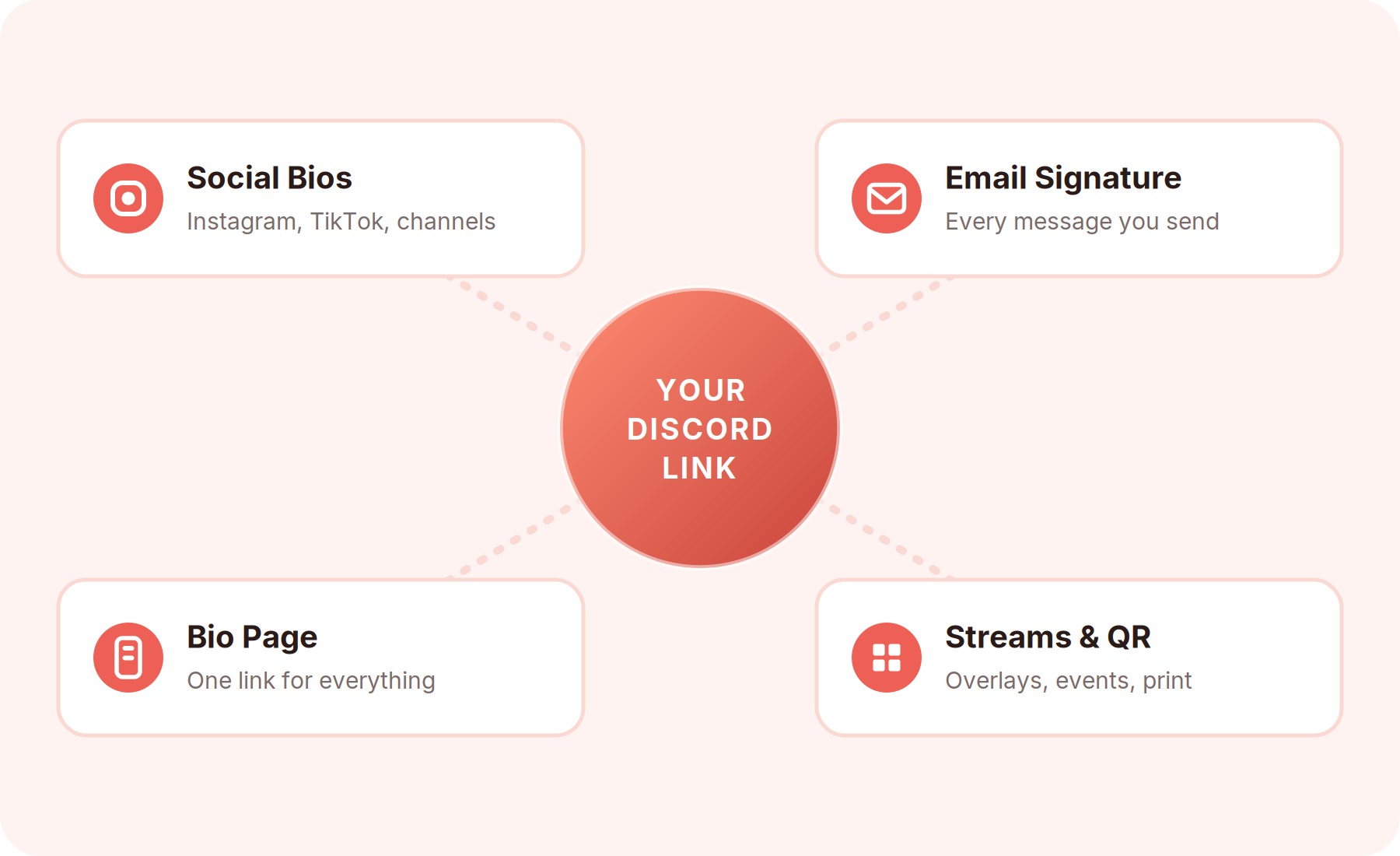
Start with your social bios. You can add it to your TikTok bio, drop it into your Instagram link slot, or feature it on your channel pages. If you want your Discord profile to feel intentional rather than tacked on, refresh your handle and description with a few Discord bio ideas so the profile people land on looks polished.
Email signatures are an underused spot too. A short “Connect with me on Discord” line with your user link gives every message a low-pressure call to action. For creators trying to grow your following, the same link on every platform builds a habit: people learn there is one place to find and reach you.
Common Mistakes And How To Fix Them
If your Discord profile link is not opening, the cause is almost always one of a few small issues. Fixing them takes seconds once you know what to check.
- “Profile not available” error: The person clicking may not be logged in. A Discord user link only opens for signed-in accounts, so ask them to log in first.
- Copied the wrong ID: Server IDs and message IDs look similar to User IDs. Make sure you copied the ID from your avatar, not a server or channel.
- Privacy settings blocking contact: If people can reach your profile but cannot message you, check your privacy and direct-message settings so the right audience can connect.
- Broken link on social platforms: Some apps trim long URLs. When you share your Discord account on those platforms, a shortened or bio-page link avoids the cut-off.
Put Your Discord Link On A Bio Page With brandID
If you share your profile with a public audience, a raw ID URL is hard to remember and impossible to track. A bio page fixes both. With brandID‘s link-in-bio page, you place your Discord user link next to your other channels on one branded URL, then reuse that single link everywhere you post.
Because everything sits on one page, updating a link never means editing ten different bios. You can also make posts shoppable, capture emails, and see which links get the most clicks, so Discord profile sharing becomes part of a real growth system rather than a copy-paste chore. It takes only a few minutes to build, and the free plan is enough to get your link live today.
Drop your Discord profile link on a branded brandID bio page, track every click, and share one memorable URL across all your platforms. Free to start.
Build Your Free Bio PageConclusion
Learning how to share your Discord profile link comes down to three moves: enable Developer Mode, copy your User ID, and drop it into the discord.com/users/ID format. From there, you can share the raw link in a DM, hand out your unique username offline, generate a QR code for events, or house everything on a branded bio page.
The method you choose should match your audience. A quick DM only needs the direct URL, while a public creator profile benefits from a memorable, trackable page that keeps your Discord link consistent across every platform. Set it up once, place it everywhere, and you will never send someone hunting through the search bar again.
Frequently Asked Questions
Can you share a Discord profile link without Developer Mode?
Not the full clickable link, since the User ID that powers it only appears once Developer Mode is on. You can, however, share your unique username without any settings changes. It is not a one-tap link, but it lets people search and find your Discord account instantly.
Why is my Discord profile link not working?
The most common reason is that the person clicking is not logged in, because a Discord user link only opens for signed-in accounts. Double-check that you copied your User ID rather than a server or message ID, and confirm the full URL was not shortened or cut off by the platform.
Is it safe to share your Discord account link publicly?
Your User ID is not a secret and cannot be used to log in, so sharing it publicly is generally fine. To stay in control, adjust your privacy and direct-message settings so only the audiences you want can message you after they reach your profile through the link.
What is the difference between a profile link and a server invite?
A profile link points to you personally and opens your account popup, while a server invite uses a discord.gg address to bring people into a community you run. Use a profile link for networking or collaboration, and a server invite when you want to grow a group or channel.
 Summarize this article with: