
Telegram Automation
BotFather token setup, start menu, referral deep links, rich media messages, and Telegram invoices.
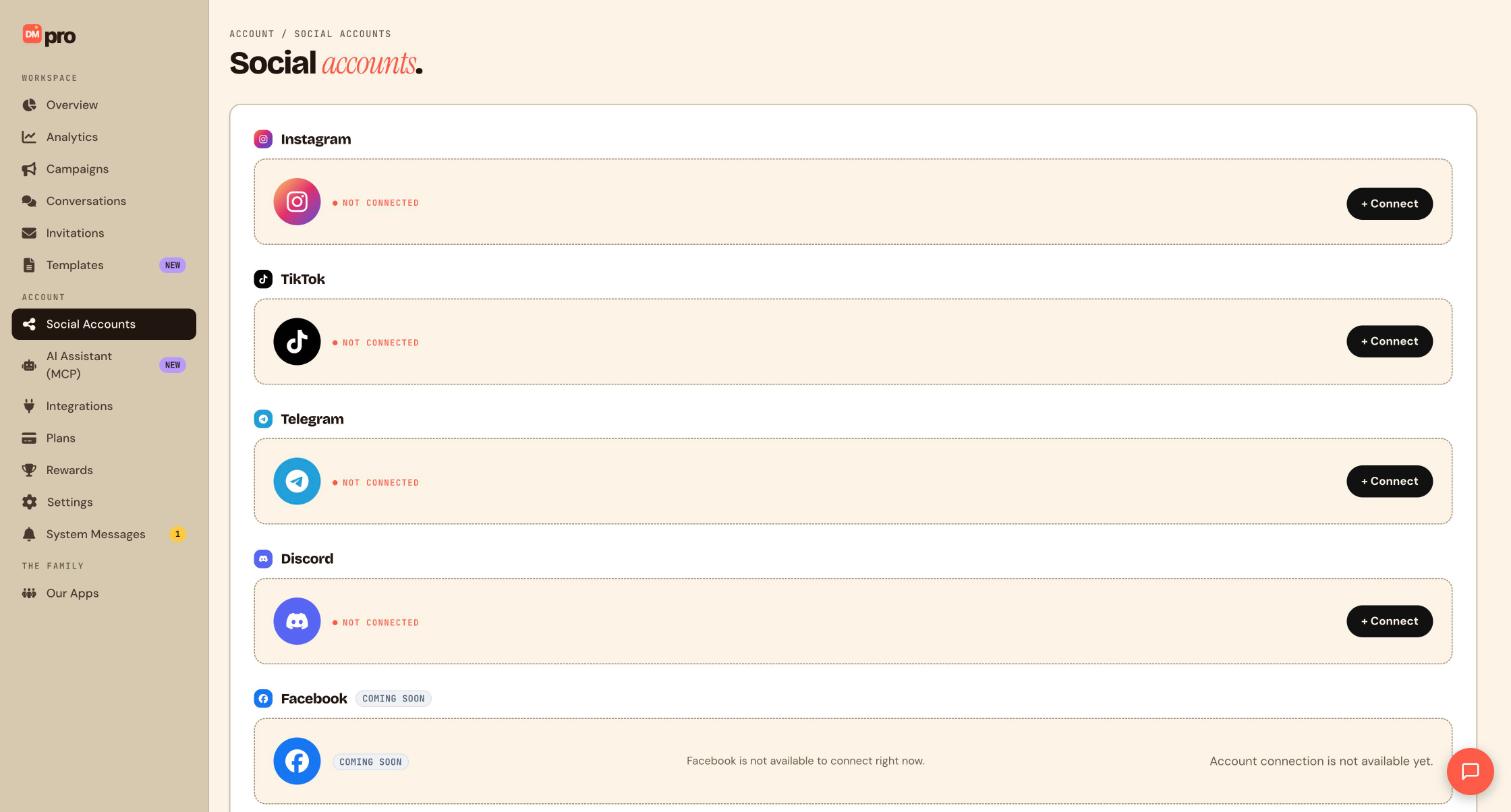
Connect Telegram bot
- In Telegram, message @BotFather: send
/newbot, follow prompts, copy the bot token. - In DMpro, go to
/settings#accountsor/onboarding. - Click Connect Telegram: paste token in the Bot token modal.
- DMpro registers webhook automatically, confirm Connected with @bot_username.
Start menu button trigger
- Open
/campaigns/telegram/new. - Drag Start menu button trigger.
- Configure menu button labels in BotFather (
/setcommandsor custom keyboard) to match trigger payloads. - Flow runs when user taps
/startmenu button.
Received message trigger
- Drag Received message trigger.
- Set keyword match on inbound text.
- Respond with Send message, Send buttons, AI Response, etc.
Referral deep link trigger
- Drag Referral deep link trigger.
- Create link format:
https://t.me/YourBot?start=campaign_payload. - Set Payload in inspector to match
startparameter. - Track affiliate or campaign source via unique payloads. You can append up to 3 custom field keys to the payload to carry extra attribution data along with the referral.
Rich media actions
Telegram has the richest set of message types of any platform DMpro supports.
- Send message: text, voice, audio, animation (GIF), sticker, or a media group (multiple photos/videos sent as one album)
- Send buttons: inline keyboard for taps and branching
- Request contact: ask the fan to share their phone number via a reply-keyboard button
- Send sticker: static or animated Telegram sticker
- Send GIF: animation via Telegram document API
- Send location: map pin
- Send contact card: share a phone/contact from the bot
- Send invoice: Telegram Payments invoice (requires payment provider setup in BotFather)
- Call webhook: send the conversation to an external URL for custom integrations
- AI response: AI-generated reply, either one-time or a continuous back-and-forth conversation
Text length: Telegram messages support up to 4,096 characters, more than double Discord’s 2,000-character limit, so there’s plenty of room before you need to split a message up.
Paths and Wait for reply
- Add a Paths block to branch the flow by button tap or by matching what the fan types back, this is Telegram’s main branching tool.
- Add a Wait for reply block when you just need to collect a single reply before continuing, without branching.
- Inline buttons on any Send message step can also route straight to another step in the flow, without a separate Paths block.
Publish Telegram campaign
- Select connected bot in header dropdown.
- Click Publish campaign.
- Open
t.me/YourBot?start=testto verify referral trigger.
—
Still stuck? We’re happy to help.
Create your DMpro account, see pricing, or reach out to support directly.




