
Creating Campaigns
Start a new campaign, pick a platform, use templates, configure basics, publish, pause, and resume.
Start a new campaign from Campaigns
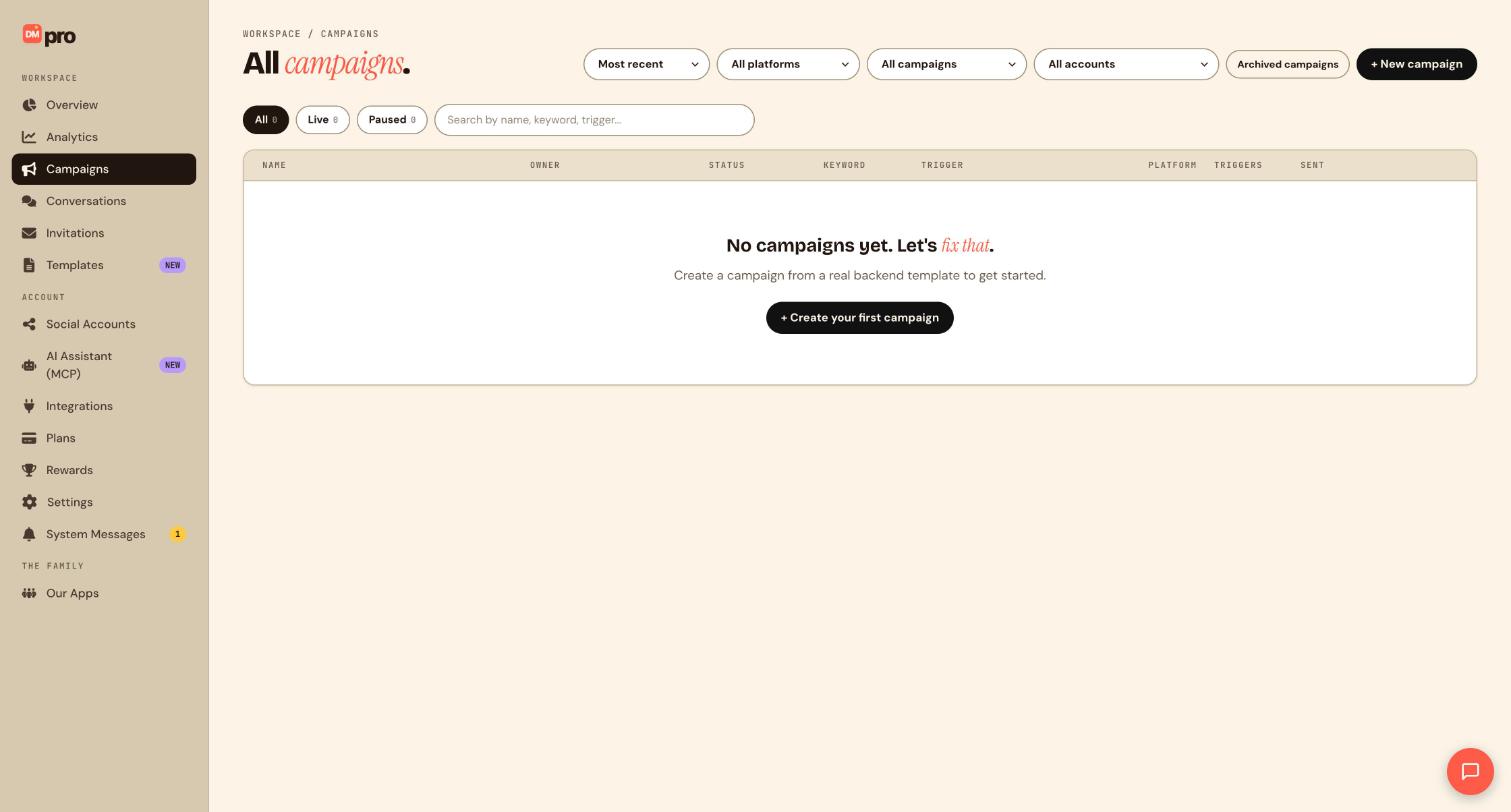
- Click Campaigns in the sidebar (
/campaigns). - Click + New campaign in the page header.
- The Choose platform modal lists: Instagram, TikTok, LinkedIn, Facebook, WhatsApp, Telegram, and Discord: each with platform icon and short description.
- Select a platform, you navigate to
/campaigns/{platform}/new(e.g./campaigns/instagram/new).
Start from Overview
- On
/dashboard, click + New campaign. - Same platform picker appears, select your platform.
Use a template during creation
- From
/templates, hover a template card and click Use template. - DMpro opens
/campaigns/{platform}/newwith flow nodes pre-populated. - Edit trigger keyword, connected account, and flow steps on the canvas.
- The live preview panel on the right updates as you edit.
Configure campaign basics in the builder header
- Campaign name: editable title at top of builder (
CampaignBuilderHeader). - Connected account dropdown, select which linked social account runs this campaign (Free: one account per campaign).
- Status badge: shows Draft, Active, or Paused.
- Next step button, advances the setup wizard when applicable.
- Save template: saves current flow to your template library.
- Draft: saves without publishing.
Publish a campaign
- Complete required fields: trigger, at least one action step, connected account.
- Review the validation banner at the top, red items block publish; amber items are warnings.
- Click Publish campaign (shows Publishing… while saving).
- On success, status changes to Active and webhooks begin listening.
- Manage the live campaign at
/campaigns/{id}/manage.
Pause or resume
- Open
/campaignsand find your campaign row. - Click the ⋯ menu → Pause: stops new automations without deleting the flow.
- Click Resume to reactivate.
Campaign status: active, paused, archived, expired, deleted
| Status | What it means |
|---|---|
| Active | Campaign is live and responding to matching triggers. |
| Paused | Temporarily stopped. No new automations fire until you resume it. |
| Archived | Removed from your active campaigns list and no longer matching triggers, without deleting the flow. |
| Expired | The campaign’s end date has passed. DMpro stops it automatically. |
| Deleted | Removed from your campaigns list. |
Tip: Set an end date on a campaign for time-limited promos or giveaways. DMpro expires it automatically once that date passes, no manual pausing needed.
—
Still stuck? We’re happy to help.
Create your DMpro account, see pricing, or reach out to support directly.




