
Availability & Schedules
Set your weekly working hours, one-off overrides, buffer times, shortest notice, and time zones.
Your weekly working hours decide which time slots are bookable on every event type by default. Setting them takes a minute and you can fine-tune anytime.
1. Open Availability
Click Availability in the sidebar. You will see your default schedule, which bookme created from your onboarding answers.
2. Edit Each Day
For each day of the week, you can:
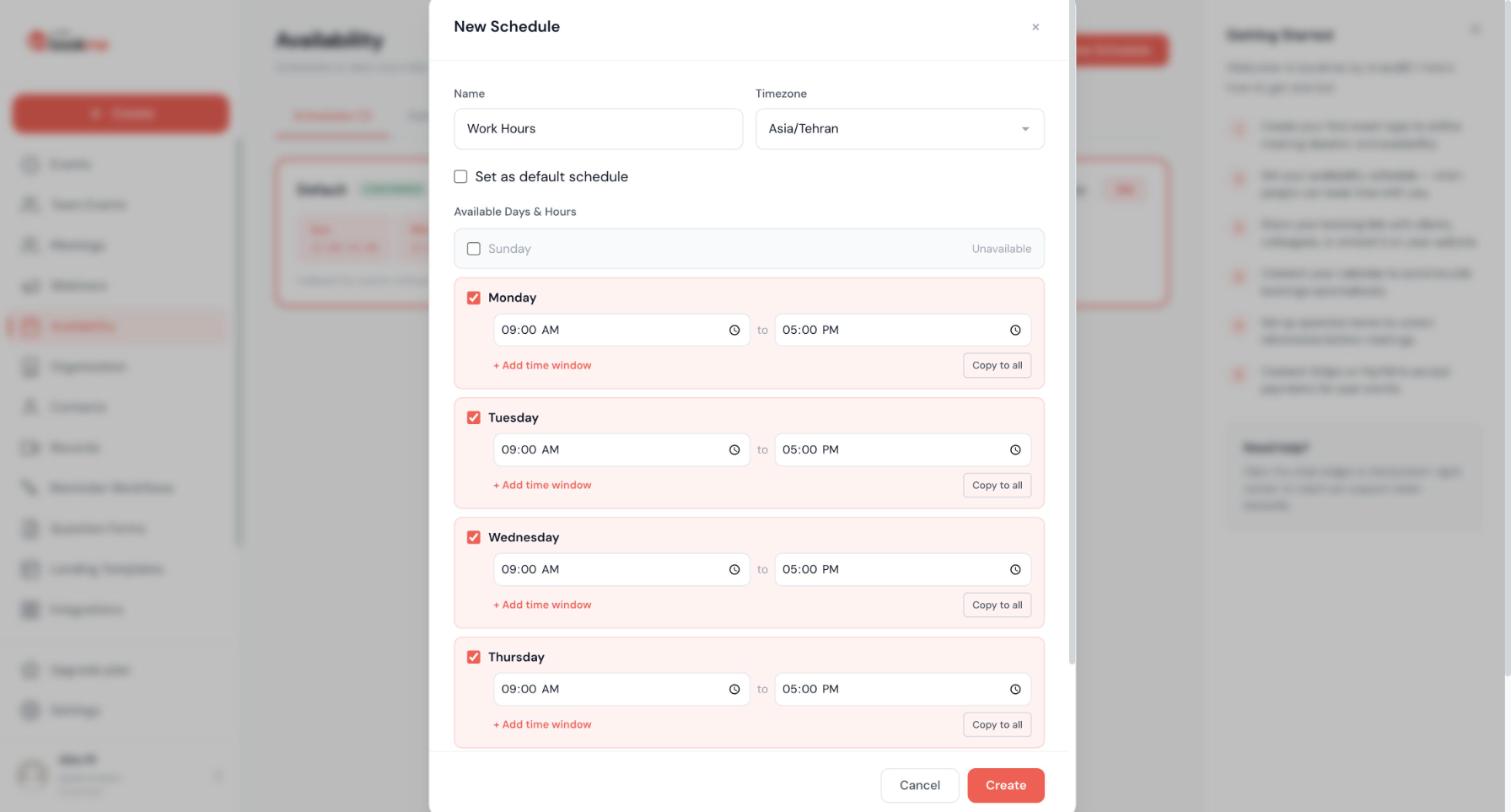
- Toggle it on or off. Days that are off (typical for Saturday and Sunday) appear as “Unavailable.”
- Set start and end times. Default is 09:00 to 17:00.
- Add multiple time blocks per day. Useful if you take a lunch break or split your day into morning and afternoon shifts.
Click + Add time to add another block to a day.
3. Apply To Multiple Days
Set the hours you want, then click Copy to other days. Pick which days should inherit the same hours. Saves time if your schedule is identical Monday through Friday.
4. Time Zone
At the top of the Availability page, your time zone is shown. The hours you enter are interpreted in this zone. If you travel or move, update the time zone here so your availability follows.
5. Save
Changes save automatically as you edit. You can confirm by opening your booking page in another tab: the calendar grid should reflect the hours you just set. The new hours apply to every event that uses this schedule from your next page load onward; times already booked are never moved.
6. When Working Hours Are Not Enough
The default schedule controls every event type. If you need different hours per event (e.g. “consulting sessions only on Tuesdays and Thursdays”), create a second schedule and assign it to that event. See How To Create Multiple Schedules For Different Event Types? next.
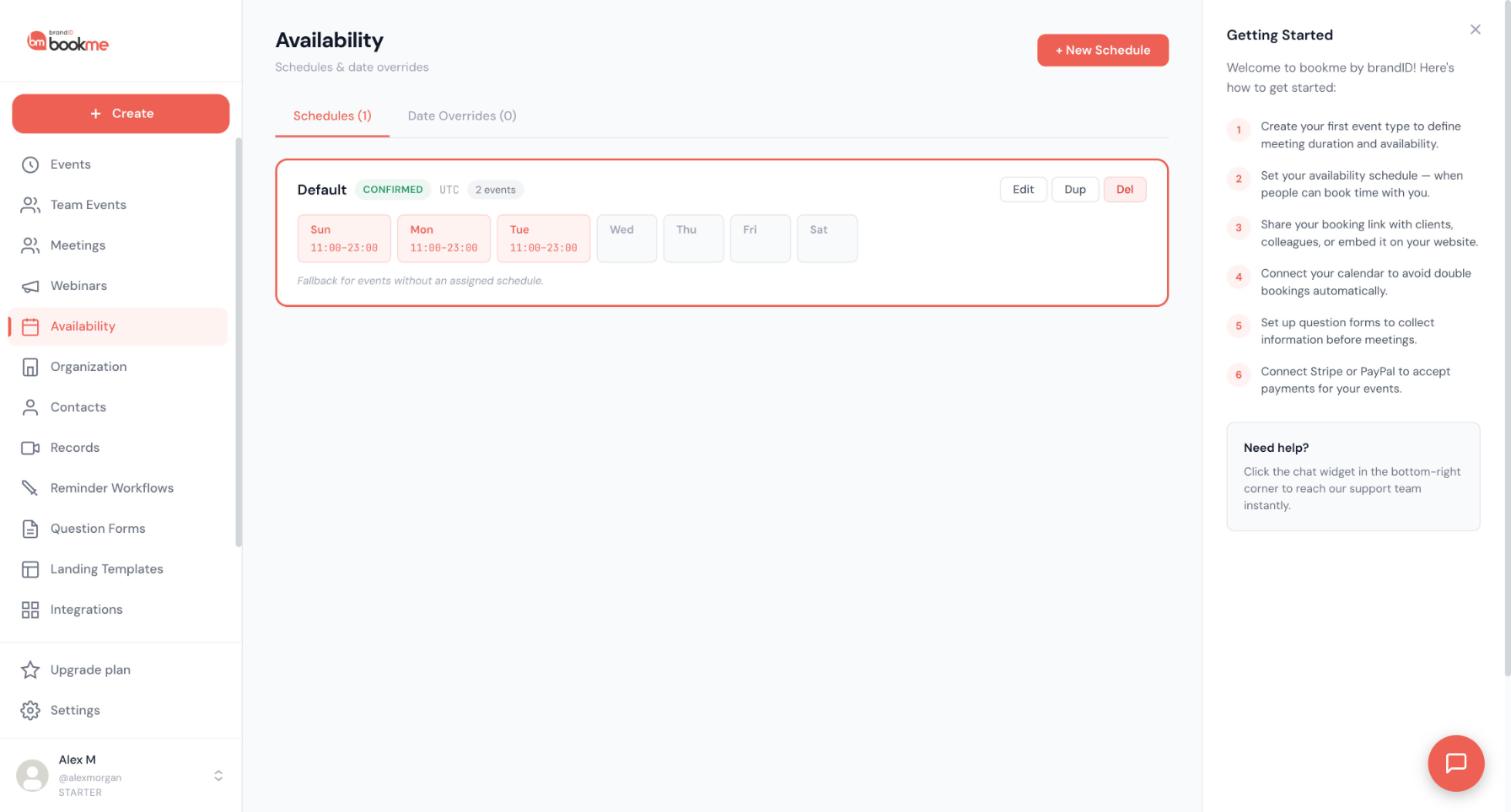
bookme lets you create as many schedules as you want and assign each event type to a schedule. This is how you give different events different hours.
1. The Use Case
Common scenarios:
- A coach takes paid clients Tuesday to Thursday but free discovery calls only on Mondays.
- A consultant works mornings in Europe and afternoons in the US, with different schedules for each.
- A founder takes investor calls only on Friday afternoons.
- A support team handles general support 9-5 weekdays and emergencies 24/7.
Each can be modeled with its own schedule.
2. Create A New Schedule
Open Availability, then click + Create new schedule. Name it something specific:
- “European hours”
- “Friday investor block”
- “Paid clients only”
- “Weekends emergency”
3. Set The Hours
Same editor as the default schedule. Set days on or off, start and end times, multiple blocks per day. Pick a time zone.
4. Assign An Event Type To The Schedule
Open the event you want this schedule to govern. Under the Availability step in the event wizard, set Schedule to the new schedule you just created.
The event will now use the assigned schedule’s hours instead of the default.
5. Default Schedule Behavior
Every event without an explicit assignment uses the default schedule. You can make any schedule the default by clicking the star icon next to its name on the Availability page. The default schedule is also what co-hosts get on your team events, unless they pick a schedule of their own for that event.
6. Reordering And Deleting Schedules
- Rename a schedule by clicking its name on the Availability page.
- Delete a schedule with the three-dot menu. Any event types assigned to it fall back to the default.
7. How Schedules Interact
Schedules only define when an event may be booked; bookings themselves always block each other across every schedule. A coaching call booked under an evening schedule still blocks a sales call at the same time under a day schedule, and your Google Calendar busy time applies to all of them.
8. Team Events
On a team event, each co-host can be set to a schedule of their own for that event; the creator does this in the Hosts step of the event wizard. Any co-host without an explicit choice uses their own default schedule.
9. Combining Schedules And Overrides
Schedules cover regular weekly patterns. For one-off changes (vacations, conferences, special hours), use date overrides (see next article). Overrides apply on top of whatever schedule the event uses.
A date override is a one-off change to a single, specific day: block it entirely or give it custom hours. Use it for vacations, conferences, holidays, or any day you need different hours. Overrides apply to all of your schedules and events at once.
1. Open The Date Overrides Tab
On the Availability page, click the Date Overrides tab next to Schedules.
2. Add A New Override
Pick a day on the calendar, then choose:
- Block the whole day. No slots offered.
- Custom hours. Enter one or more windows for that day; these override the regular schedule.
Add an optional reason (“Holiday,” “Conference”) for your own reference, then save.
3. Common Use Cases
Block a vacation: – One blocked override per day, e.g. October 14, October 15, October 16… through October 21.
Special conference availability: – Override for November 6 (conference day), custom hours 8 AM to 10 AM only.
Half-day Fridays in summer: – One override for each Friday in July, custom hours 9 AM to 1 PM only.
Holiday block: – One blocked override per day across December 24 through January 2.
4. Conflicts With Existing Bookings
If the override would cut across bookings you already have, bookme shows them before saving and lets you resolve each one: reschedule it to a new time, cancel it, or keep it and save anyway. Bookings you keep are honoured even though the day is blocked.
5. Override Beats Everything On That Day
A blocked override removes the day from every event. Custom hours replace the schedule’s windows for that day, and also open a day your schedule normally leaves closed (a weekend, for example). An override with custom hours even opens a public holiday that bookme blocked automatically.
6. Remove An Override
Click the day again and delete the override; the schedule’s normal hours return.
7. Reusing Overrides
bookme does not auto-repeat overrides year over year. If you want October 14 off every year, you need to add a new override each year. Most hosts add a batch at the start of each year for known holidays and vacation plans.
8. Holidays
bookme blocks public holidays automatically based on the country in your profile. An override with custom hours opens a holiday again. See How Are Holidays Detected And Marked As Unavailable? for details.
bookme treats each day independently in a schedule, so different hours per day is the default behaviour.
1. Open Your Schedule
Go to Availability and open the schedule you want to edit (default or one you created).
2. Edit Each Day’s Hours Independently
Click the start or end time for any day and adjust. Changes save automatically.
Common patterns:
- Standard professional: Monday-Friday 9-5, weekends off.
- Coach with sliding scale: Monday 10-6, Tuesday 9-5, Wednesday 10-2, Thursday 9-5, Friday 9-1.
- European mornings, US afternoons: Monday 7-11 and 14-18, Tuesday 7-11 and 14-18, etc.
- Weekend-focused therapist: Saturday 9-5, Sunday 10-4, weekdays off.
3. Days Off
To mark a day completely off:
- Click the day’s row.
- Toggle Unavailable.
The day greys out and no slots are offered.
4. Save And Verify
Schedules save as you edit. Open your booking page in an incognito window and confirm the day-by-day differences show correctly.
5. Different Days Per Event Type
If you need event-by-event differences (e.g. paid coaching only on Tuesdays, free intros any day), use the multiple schedules pattern (see related article).
bookme supports as many time blocks per day as you need. This is how you carve out a lunch break, split-shift work, or any irregular schedule.
1. Open The Day’s Settings
In your schedule, click the day you want to edit. The day expands to show its time blocks.
2. Click + Add Time
The + Add time button creates a new time block. Set its start and end times.
A day with a lunch break:
- Block 1: 09:00 to 12:00
- Block 2: 14:00 to 18:00
A day with a split for a parent picking up kids:
- Block 1: 09:00 to 14:30
- Block 2: 19:00 to 21:00
3. Time Blocks Cannot Overlap
bookme rejects overlapping blocks. If you try to add 14:00-18:00 on top of an existing 13:00-15:00, you get an error. A block can be any length, but a block shorter than an event’s duration (plus its buffers) simply yields no slots for that event. A block that crosses midnight, such as 22:00 to 02:00, is supported and counts for the day it starts on.
4. Remove A Block
Click the trash icon next to any block. The block deletes immediately.
5. Block Order
Blocks render top-to-bottom in chronological order automatically. You do not need to reorder them manually.
6. Why Multiple Blocks Matter
A single 9-5 block with a “lunch hour” inside it would still offer slots over lunch (bookme does not know you eat). Multiple blocks (9-12 and 1-5) cleanly carves the lunch hour out.
7. Calendar Sync Still Wins
Even with multiple time blocks, bookme respects busy times from your connected Google or Outlook calendar. If a 10 AM block is also blocked by a calendar event, bookme treats it as unavailable. Multiple blocks shape the maximum bookable window; the calendar narrows it further.
Buffer time is padding around a meeting that cannot be booked over. It gives you space to prepare, decompress, or travel.
1. Buffer Before And Buffer After
In the event wizard, the Availability step has two fields:
- Buffer before (minutes added before each slot).
- Buffer after (minutes added after each slot).
Both default to 0.
2. How Buffer Affects Available Slots
With a 30-minute event and 15 minutes of buffer on each side, a 10 AM booking effectively blocks 9:45 to 10:45. The next bookable slot starts at 10:45, not 10:30.
This means buffers reduce how many slots fit in a day.
3. Common Buffer Choices
- No buffer (0). For tightly scheduled days when you can handle prep mentally.
- 5 to 10 minutes. Light prep, short context switch.
- 15 minutes. Standard for most professional contexts; lets you finish notes and prep for the next call.
- 30 minutes. Heavy prep or back-to-back deep work.
- 60 minutes. In-person travel or recovery from intense sessions.
4. Asymmetric Buffers
Buffer before and buffer after can be different. Common setups:
- Buffer before = 0, Buffer after = 15. You are ready when meetings start but need 15 minutes after to write notes.
- Buffer before = 15, Buffer after = 0. You need prep time, but can rush off after.
- Buffer before = 30, Buffer after = 30. High-stakes meetings (interviews, board calls).
5. Per-Event Buffer
Buffers are set per event type, not globally. A 15-minute intro can have 0 buffer; a 60-minute coaching session can have 30 minutes of buffer. Set each event independently.
6. Buffer And Calendar Sync
A slot is offered only if the buffer before it and the buffer after it are also free. Buffers apply around bookings of this event and around anything else that blocks the time, including other bookings and busy time from your connected Google or Outlook calendar.
7. Buffers And Group Events
For a group event, other attendees booked into the same slot do not trigger buffers against each other; only other meetings do.
bookme has two settings that bound when slots can be booked: Shortest notice (how soon) and Bookable up to (how far). Combining them shapes the booking window precisely.
1. Shortest Notice
Open the event wizard, then the Availability step, Booking window. Find Shortest notice: a number and a unit (hours, days, or weeks ahead). The onboarding default is 1 hour.
Examples:
- 0 hours. Anything still in the future can be booked, even a slot starting in five minutes.
- 2 hours. A page opened at 10:00 shows nothing before 12:00.
- 1 day. Today is never offered; tomorrow is offered from the current clock time onward.
- 1 week. Only times from seven days out.
Shortest notice also applies when an invitee reschedules through their link, and when you reschedule from Meetings: the new time must still be a slot the page would offer.
2. Bookable Up To
Same step, Booking window, the Bookable up to field caps how many days into the future invitees can book. The default for new events is 60 days; the maximum is 730.
Choosing a value:
- 7 to 14 days. Sales calls where speed matters.
- 30 to 60 days. Most consulting and coaching.
- 90 days or more. Workshops and events people plan around.
3. Same-Day-Only Events
There is no “same day only” switch. For walk-in style availability, set Shortest notice to 0 and Bookable up to to 1 day: only the next 24 hours are offered.
4. Combine For “Next Week, But Not This Week”
- Shortest notice: 7 days (or longer).
- Bookable up to: 14 days.
Result: invitees see slots starting next Monday through the following Sunday.
5. Common Patterns By Role
- Sales discovery call: Shortest notice 1 hour, Bookable up to 14 days. Fast intake, short pipeline.
- Paid coaching session: Shortest notice 24 hours, Bookable up to 30 days. Prep needed, monthly view.
- Customer support onboarding: Shortest notice 1 hour, Bookable up to 7 days. Reactive, fast.
- Board meeting: Shortest notice 1 week, Bookable up to 90 days. Heavy coordination.
6. Per-Event vs Workspace-Wide
These settings are per event type. Different events can have different windows. There is no workspace-wide minimum or maximum; everything is event-level.
“Bookable up to” is the booking horizon: how many days into the future a visitor can book a particular event. It is one of the most overlooked settings in bookme.
1. The Setting
In the event wizard, Availability step, Booking window, Bookable up to is the number of days out that bookings are allowed.
The default for new events is 60 days; the maximum is 730.
2. How bookme Counts Days
The horizon rolls forward every day: with 30 days, a visitor on 1 March can book up to 31 March, and on 2 March up to 1 April. It is measured from now, not from the start of the day.
If today is October 1 and the horizon is 30 days, the last bookable day is October 31.
3. What Invitees See
The month view on the booking page greys out days beyond the horizon. Days beyond the max do not appear at all (the previous and next month arrows stop working when there is nothing else to show).
4. Why Bookable Up To Matters
Too low (e.g. 7 days):
- Creates urgency. Invitees decide fast.
- Risks losing bookings from people who plan further out.
- Good for: sales pipelines, support, time-sensitive offers.
Too high (e.g. 365 days or more):
- Lets invitees book anything, including many months from now.
- Most far-future bookings ghost when the time comes.
- Good for: long-cycle consulting, board meetings, planned launches.
The sweet spot for most hosts: 14 to 30 days.
5. Different Horizons Per Event Type
Use different horizons for different events to nudge behavior:
- “Quick chat” (15 min): Bookable up to 14 days. Casual, short pipeline.
- “Discovery call” (30 min): Bookable up to 30 days. Standard pipeline.
- “Paid coaching” (60 min): Bookable up to 60 days. Longer planning window.
- “Board meeting” (90 min): Bookable up to 90 days. Heavy coordination required.
6. What Happens At The Limit
The exact moment a booking is at the edge of the horizon:
- If today is October 1 and the horizon is 30 days, slots on October 31 are bookable up to (but not after) November 1 at 00:00 in your timezone.
- October 31 becomes unbookable once November starts.
7. Combine With Shortest Notice
Together, Shortest notice and Bookable up to define your booking window. Notice trims the near end, the horizon trims the far end. A “must book between 1 hour and 14 days from now” window looks like:
- Shortest notice: 1 hour
- Bookable up to: 14 days
That defines a clear two-week booking horizon.
bookme blocks public holidays automatically based on the country in your profile, using a public holiday calendar. You can open a holiday again with a date override.
1. Where The Country Comes From
Settings, then Profile, Country. It is guessed at sign-up from your time zone, so check it: a wrong country blocks the wrong days.
2. What Gets Blocked
Every nationwide public holiday of that country, for the whole day, on every schedule and event. Regional holidays and company days off are not included.
3. Working On A Holiday
Add a date override with custom hours for that day. An explicit override wins over the automatic holiday block. (A blocked override keeps the day closed.)
4. Turning Holiday Blocking Off
Clear the Country field in your profile. With no country, no holidays are blocked. There is no per-holiday list to edit.
5. Team Events
Each host’s own country applies to their availability. A collective slot on a day that is a holiday for one required host is not offered.
bookme handles time zones automatically. You set your availability in your time zone; invitees see slots in their time zone. bookme does the conversion on the fly.
1. Your Profile Time Zone
Set under Settings, then Profile, Timezone. Auto-detected from your browser the first time you use the dashboard, but you can override it. It controls how times are displayed to you: the Meetings page, booking details, and the “Your time” column, and it is the zone used in the emails you receive.
2. Your Schedule Time Zone
Each schedule also has its own time zone. “9 AM to 5 PM Monday” in a schedule means 9 AM to 5 PM in that schedule’s zone, not necessarily your profile zone. Change it on the Availability page when you relocate for a while.
3. The Invitee’s Time Zone
On the booking page, bookme auto-detects the invitee’s time zone from their browser. They see a time zone label at the top of the calendar picker and can change it manually if they are in transit or using a VPN.
4. Conversion Example
You are in New York (UTC-5) and offer 9 AM to 5 PM availability. An invitee in London (UTC+0) opens your booking page:
- Your 9 AM becomes their 2 PM.
- Your 5 PM becomes their 10 PM.
The London invitee sees slots from 2 PM to 10 PM in their local time. You both see the meeting at “9 AM your time, 2 PM their time” in confirmations.
5. The Confirmation Shows Both Times
Every booking confirmation email shows:
- The meeting time in the invitee’s zone (large, primary).
- The meeting time in your zone (smaller, secondary).
This eliminates any “wait, what time is that?” confusion.
6. Daylight Saving Time
bookme handles DST automatically. If your zone shifts (March or November in most of the US, March or October in Europe), bookme adjusts the conversion. Bookings that span the shift get updated automatically.
7. Travel And Temporary Zone Changes
If you travel:
- Short trip (1 to 2 days): leave your time zone as-is in bookme. Your availability stays consistent for your “home” working hours; you adjust mentally.
- Long trip (1 week+): update your bookme time zone to match your destination. Set your availability to whatever hours you can actually take meetings.
8. Round-Robin Across Time Zones
For round-robin and collective events with hosts in different zones, bookme intersects each host’s schedule in their own zone. Slots are offered to invitees in their zone, taking everyone’s intersected availability into account.
Date overrides are the right tool for anything that is not your normal week: a vacation, a conference day, or a Saturday you decide to work.
1. When To Use Overrides Vs Schedules
- Use a schedule for patterns that repeat weekly (“I work 9-5 Mon-Fri”).
- Use a date override for a single one-off day (“I’m on vacation Oct 14”).
2. Vacation: Block Each Day
Go to Availability, then Date Overrides tab. For each day you are away, click + New override and set:
- Date: the day, e.g. Oct 14.
- Override type: Unavailable.
Save. The booking page skips that day for every event. Add a reason so you remember why. Repeat for every day of the vacation, e.g. Oct 14 through Oct 21, one override per day: there is no date-range override yet.
3. Conference: Custom Hours For A Day
For a conference day where you can still take a few meetings:
- Date: Nov 6.
- Override type: Custom hours.
- Hours: 7 AM to 9 AM (before the conference starts).
Save. Only those 2 hours are offered on Nov 6.
4. Half-Day For An Appointment
For a doctor’s appointment in the afternoon:
- Date: Dec 12.
- Override type: Custom hours.
- Hours: 9 AM to 1 PM.
Save. Slots after 1 PM disappear on Dec 12.
5. Recurring Special Hours
Overrides are per date. For “Half-day Fridays in summer,” which repeats every week, change the schedule instead, or create a second schedule for the events it applies to, rather than adding an override for each Friday.
6. Quick-Block A Single Day
The fastest way: click on a specific date in the date-override calendar picker, then click Block this day. A full-day Unavailable override is created in one click.
7. Bulk Import From Calendar
On Pro and Elite, you can sync your calendar’s all-day events as bookme overrides. Open Settings, then Calendars, then Auto-block all-day events. Toggle on. Any all-day event with “Vacation” or “OOO” in the title becomes a bookme override automatically.
By default, yes. Your hours live in a named schedule and event types point to it instead of keeping a copy. Edit the schedule once and every event using it updates.
- Give one event different hours by assigning it another schedule, or by locking custom hours for that event only.
- In team events, hours can be locked for the whole event or for a single host, independently.
Full explanation: How Scheduling Works.
They replace the weekly hours for that date. An override with custom hours offers only those hours that day, and an override with no hours means unavailable all day.
Because overrides replace, you never need to “undo” your regular schedule for a holiday. Just add the override.
Within a couple of minutes. To keep booking pages fast, bookme remembers availability briefly for each month and time zone, then refreshes it after any change to your hours, overrides, calendar or bookings.
When an invitee confirms a time, bookme checks it again, so a slightly older preview can never double-book you. See How Scheduling Works.
Still stuck? We’re happy to help.
Create your bookme account, see pricing, or reach out to support directly.




