Found a video you love and want to share it with your own followers? Learning how to repost on TikTok takes about two taps, but the feature hides a few surprises that trip people up. Reposts don’t sit on your profile like normal videos, they can vanish without warning, and TikTok added a comment option in 2026 that most guides still ignore.
Reposting lives alongside a cluster of other privacy and visibility toggles that control who sees what you do on the app. Steps for turning off profile views on TikTok are a useful companion if you are tightening your account from strangers at the same time as curating your reposted feed.
This guide walks through every angle: the exact steps, how to add a note, how to undo a repost, how to let others share your clips, and every reason the button might disappear. If you also want your own content to travel further, pair reposting with the best times to post on TikTok so your original videos hit the feed when your audience is actually watching.
Key Takeaways
- Two taps to repost: open a video, tap the Share arrow, then tap Repost. There is no upload and no copy on your profile grid.
- Reposts credit the creator: your name shows as the resharer, but likes and comments stay on the original video.
- You can now add a note: a 2026 update lets you attach a short comment to a repost using the pencil icon.
- Undo is easy: tap Share again on the same video and choose Remove repost.
- Missing button? Usually a private account, a creator who disabled resharing, an under-16 account, or a temporary action block.
- Reposting is not growth: the algorithm rewards your own original videos, not shares of other people’s clips.
What Is the TikTok Repost Feature?
A repost on TikTok shares another creator’s video with your followers, similar to a retweet on X or a share on Facebook. It surfaces the clip in your followers’ For You feeds with a small “you reposted” label, while the original creator keeps full credit and all the engagement.
TikTok rolled the repost feature out globally in May 2022, so it is a mature, well-established tool rather than a fresh test. That matters for troubleshooting: if you can’t repost on TikTok today, the cause is almost always a setting or a restriction, not a missing rollout in your region.
Reposting does not create a new video, add your voice on top, or copy the file. It simply points your audience to something you enjoyed, and TikTok documents the full behavior in its official Support Center. With TikTok reaching roughly 1.9 billion monthly active users in 2026 and an average of 95 minutes of daily use per person, according to figures compiled from Statista, a single well-timed repost can put a creator’s work in front of an enormous, highly engaged crowd.
How to Repost on TikTok (Step by Step)
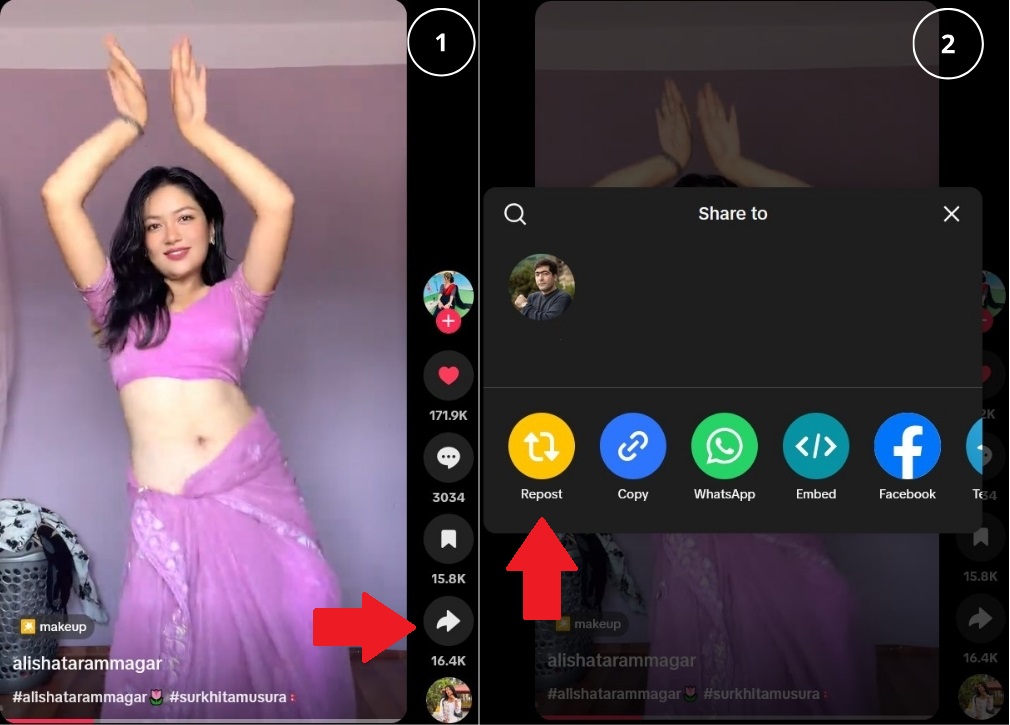
To repost on TikTok, tap the Share arrow on any eligible video, then tap Repost. The video is instantly shared to your followers with the creator credited. There is no confirmation screen and no caption required, though you can add one if you want. Below are the fastest routes, plus the 2026 comment update.
- Open the video you want to share in your For You feed or on the creator’s profile.
- Tap the Share button (the curved arrow) on the right side of the screen.
- Tap the yellow Repost icon in the share menu.
- That’s it. The clip now appears in your followers’ feeds, labeled as reposted by you.
Repost From the For You Feed
The quickest way to repost TikTok videos is straight from the For You page while you scroll. Tap the Share arrow, wait for the menu to slide up, and hit Repost. This is ideal for spur-of-the-moment sharing when a clip lands well and you want your audience to see it immediately.
Repost From a Creator’s Profile
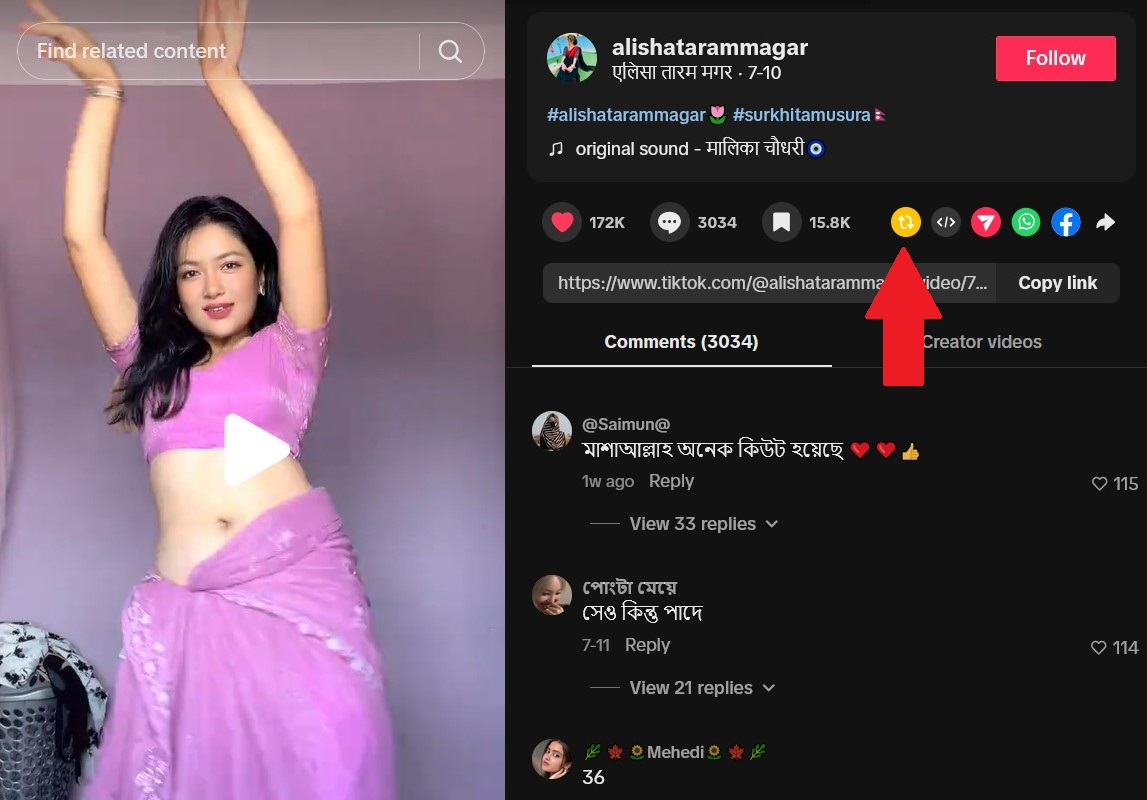
If the repost button acts up in the feed, go to the creator’s profile, open the specific video, and repost from there. Many users report that when the option glitches on the For You page, reposting on TikTok directly from the profile page still works. It is the single most reliable workaround for a stubborn button.
How a Repost Actually Moves Through TikTok
Before you lean on reposting, it helps to picture where the video goes. The graphic below maps the journey from your tap to your followers’ screens, and shows who keeps the credit.
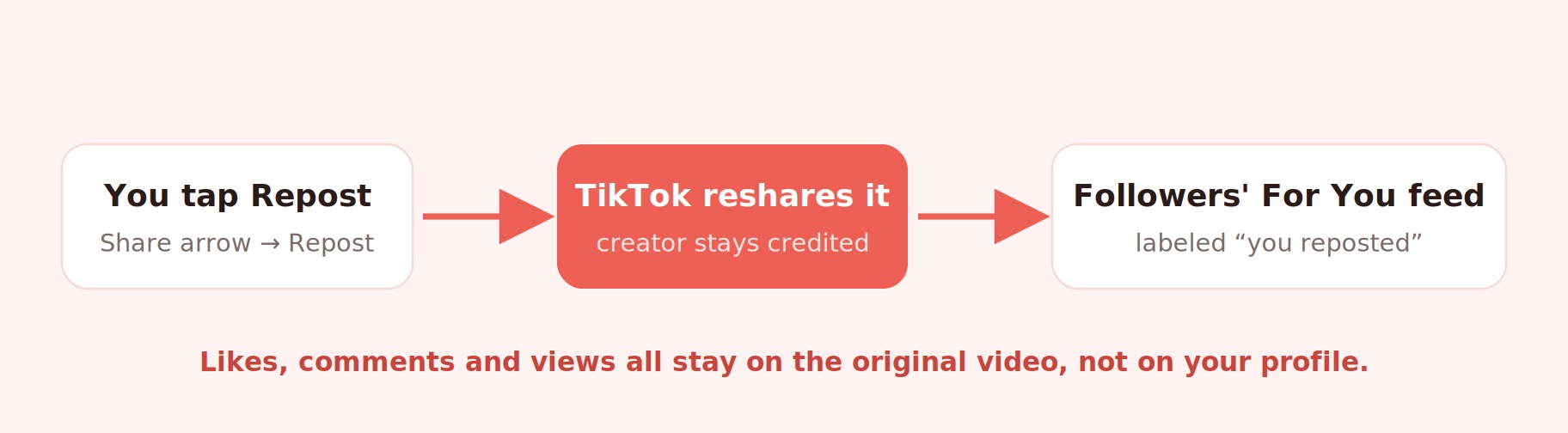
The repost path: your tap sends the creator’s video to your followers while all engagement stays on the source clip.
How to Undo or Remove a Repost on TikTok
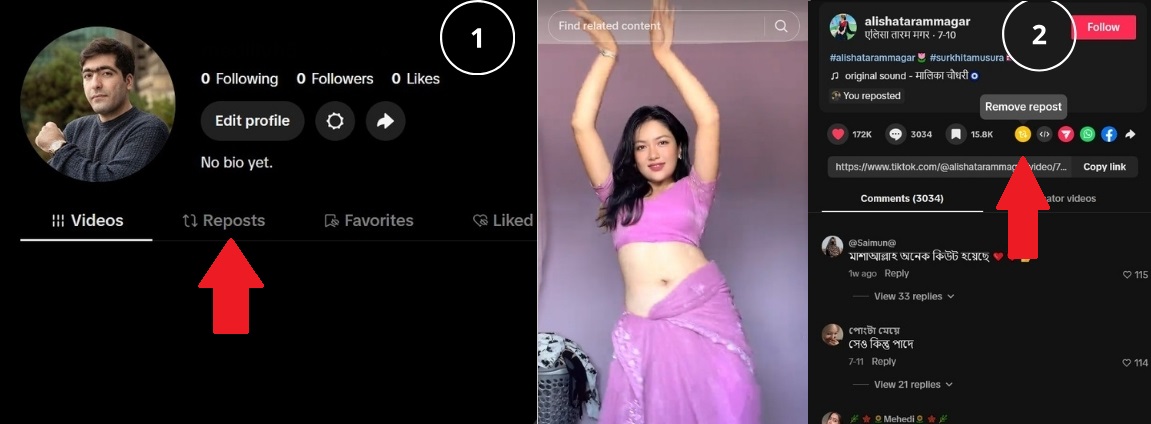
To undo a repost, open the same video, tap the Share arrow again, and choose Remove repost. The clip disappears from your followers’ feeds and from the Reposts area of your profile. There is no time limit, so you can pull back a share whenever you change your mind.
If you can’t find the video again, search the creator’s name or check your Following feed. Removing a repost does not notify the original creator, and it does not affect the video itself. This makes the repost feature low risk to experiment with while you learn what your audience responds to.
What Happens When You Repost a TikTok Video
When you repost on TikTok, the video shows up in your followers’ For You feeds with a note that you reposted it. They see the original creator’s content, not a new post from you. The like count, comments and view total stay attached to the source video.
Reposted clips do not appear in your main profile grid alongside your own uploads. Instead, you find them under a separate Reposts tab on your profile. That separation is the whole point: a repost signals endorsement without pretending the content is yours, which keeps your feed honest and the creator properly credited.
Why You Can’t Repost on TikTok (and How to Fix It)
The most common reasons you can’t repost on TikTok are a private account, a creator who disabled resharing, an under-16 account, an outdated app, or a temporary action block from resharing too fast. Each has a clear fix. The table below pairs every cause with the step that solves it.
| Reason the Button Is Missing | How to Fix It |
|---|---|
| Your account is private | Switch to a public account in Privacy settings to turn resharing back on. |
| Creator disabled resharing | Nothing to fix on your end. Not every video is eligible to repost. |
| Under-16 account | The feature is often off by default for younger users for safety. |
| Temporary action block | Reposting too many videos too fast triggers a pause, usually about 24 hours. Wait it out. |
| Outdated app or cache glitch | Update TikTok and clear the app cache in your device settings. |
| Button glitches in the feed | Open the creator’s profile and repost from the video there instead. |
One cause deserves extra care: repeated rapid resharing can look like spam and lead to temporary limits on your account. If your reach also drops across the board, you may be dealing with a broader restriction. Learn the warning signs of a TikTok shadowban so you can tell a simple repost glitch apart from an account-wide slowdown.
Repost vs. Duet vs. Stitch vs. Share
People often confuse reposting with duets, stitches, or the download and re-upload trick. They are very different tools. A repost simply forwards a video, while duet and stitch create brand-new content that lives on your profile. The comparison below makes the choice obvious.
| Action | What It Does | Shows On Your Profile Grid? |
|---|---|---|
| Repost | Shares another creator’s video to your followers, creator credited | No, sits in a separate Reposts tab |
| Duet | Records your video side by side with the original | Yes, it is your own new post |
| Stitch | Clips part of another video and adds your own footage after it | Yes, it is your own new post |
| Share | Sends a video via DM, link, or another app privately | No, nothing is published |
The rule of thumb: repost when you simply want to amplify someone else’s clip, and duet or stitch when you have something original to add. Only duets and stitches build your own catalog of videos, which is what the algorithm scores.
Should You Use Reposting to Grow on TikTok?
Reposting is great for community and curation, but it is a weak growth engine. TikTok’s algorithm grows accounts based on your own original videos, not on shares of other people’s content. A repost helps the creator you shared, not your own reach.
There is also no direct payoff. Reposts do not earn creator rewards, since payouts track your original views. If income is the goal, focus on posting consistently and study how much TikTok pays per view before you count on reposting for anything.
Used smartly, though, reposting still earns its place. Share a handful of highly relevant clips your audience will love, add a note that gives context, and avoid flooding feeds. Treat it as seasoning on top of a steady schedule of your own videos, and combine it with proven ways to make money on TikTok so every share supports a bigger plan.
- Repost only content your specific audience will care about.
- Add a note so the reshare feels intentional, not lazy.
- Cap it at a few reposts a day to avoid an action block.
- Keep your own original posting as the priority, always.
Turn Your TikTok Audience Into Revenue With brandID
Since a repost sends attention to other creators, the smarter long game is capturing the attention you already earn. That is where brandID fits. It gives creators a link-in-bio storefront where every follower who taps through can shop, subscribe, tip, or buy your digital products in one place.
With brandID you can build a bio page in minutes, tap into an affiliate marketplace of over 5 million products from more than 2,000 brands with commissions reaching up to 65%, and make your posts shoppable. When you add a clickable link to your TikTok bio, that link becomes the bridge between a viral moment and real income.
Turn TikTok reach into a shoppable storefront in minutes.
Final Thoughts on How to Repost on TikTok
Knowing how to repost on TikTok comes down to a couple of taps: hit the Share arrow, choose Repost, and optionally add a note. Remove it just as easily by tapping Share again. If the button is missing, check whether your account is public, the creator allows resharing, your app is current, and you have not tripped a temporary limit.
Use reposting to celebrate creators you admire and to keep your followers’ feeds fresh, but remember it will not grow your account or pay you on its own. The real momentum comes from posting your own videos consistently and giving your audience a place to act on their interest. Set up that destination now, and every repost, like, and comment starts working toward something you own.
Frequently Asked Questions
Can other people see what I repost on TikTok?
Yes. Your reposts appear in your followers’ For You feeds with a label showing you reshared them, and visitors can view them under the Reposts tab on your profile. Reposts do not sit in your main video grid, so they stay clearly separate from your original uploads while still being visible to others.
Does reposting on TikTok notify the original creator?
TikTok credits the creator on every repost, and their username stays on the video. Whether they get a specific alert can vary, but removing a repost sends no notification at all. Reposting is designed to support creators, so their content and its engagement always remain tied to their original post rather than to your account.
Why can’t I repost some TikTok videos?
Some creators turn off resharing, and private accounts cannot be reposted at all. You also cannot repost if your own account is private, if you are under 16 with the feature disabled, or if you triggered a temporary action block by resharing too quickly. Updating the app and clearing the cache fixes most glitch-based cases.
Do reposts help you gain followers on TikTok?
Not directly. The algorithm ranks and promotes your own original videos, not clips you repost. Reposting builds goodwill and curates your followers’ feeds, but it sends traffic to the creator you shared rather than to you. Steady original posting remains the reliable path to more followers and more reach.
 Summarize this article with: