
Whether you are an inquisitive content creator or a skilled YouTuber, I am pretty sure that there is a high likelihood you are devoting about 2–3 hours per day to creating flawless videos, am I right? But you may have also faced a really nerve-racking problem: your videos are not reaching your Instagram audience at all! Truth be told, if you are seeking success, you need to target users on multiple platforms; otherwise, you won’t experience the growth you have in mind.
In this article, I’m going to show you exactly how to share clickable YouTube links in your Instagram Stories so you can expand your reach and engage across platforms more effectively. And to make everything even easier, I’ll also introduce one of the best link in bio tools, brandID, alongside a few other great options, so you can keep all your links organized, optimized, and instantly accessible to your audience.
Why Should You Post Videos From YouTube to Instagram?
For several years, I was quite confused and kept asking myself, ‘Why should I post YouTube videos on my Instagram Story?’ I would tell myself, I can barely create high-quality content for YouTube, let alone share it on Instagram. Plus, does it really have an impact on my audience?
Believe me, it does have a significant effect on your growth, and I personally felt it after I started sharing my videos in Instagram Stories. I came to the conclusion that the more platforms showcase your content, the higher your chances of connecting with new audiences.
Let me put it this way: these two platforms serve different purposes. While Instagram users tend to scroll, engage, and discover new content, YouTube gives them the opportunity to delve deeper into a specific topic. This means that by sharing your YouTube videos on Instagram Stories, you are essentially building a bridge between these two worlds.
Here are the main reasons why you’d want to do this:
- Reach new audiences
- Increase engagement
- Build stronger brand recognition
- Stay competitive as other creators and brands
How to Share a YouTube Video on Instagram Story
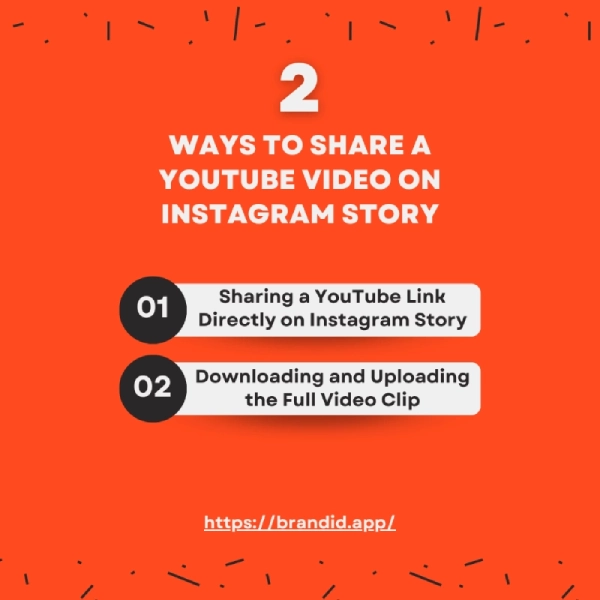
As we’ve briefly mentioned so far, sharing a YouTube video on your Instagram Story is a great way to boost engagement and promote your content. That being said, you cannot embed the YouTube video player directly into the story itself. In the following section, we will discuss two main methods that allow you to download a YouTube video and upload it to your Instagram Story.
- Sharing a YouTube Link Directly on Instagram Story
- Downloading and Uploading the Full Video Clip
1- Sharing a YouTube Link Directly on Instagram Story
This is probably the easiest and most effective way to drive traffic directly to your YouTube video page without downloading anything. Here’s a step-by-step guide on how to share a YouTube video link in your Instagram Story:
- Open the YouTube app or website and find the video you want to share.
- Tap the “Share” button below the video and copy the link.
- Open Instagram and create a new story.
- Add an appealing photo or background to make it attractive.
- Tap the Sticker icon at the top and select the Link sticker.
- Paste the copied YouTube URL into the field and customize the sticker text (e.g., “Watch Now” or “New Video”).
- Place the sticker on your story in the best possible position.
- Share your story.
2- Downloading and Uploading the Full Video Clip
To capture viewers’ attention more effectively, you can download the video and post it directly as part of your Story. Although this works for any account, it requires editing to fit Instagram’s vertical format (9:16 aspect ratio) and the 60-second per clip time limit. Keep in mind to only use your own videos or those you have permission to avoid any copyright issues.
Step 1: Download the Video
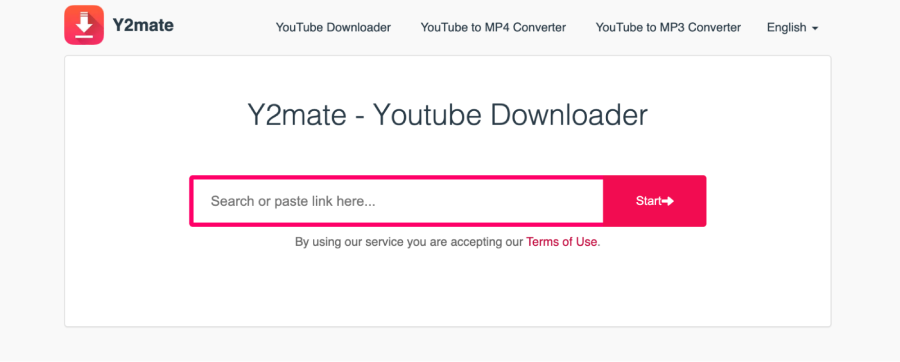
There are tons of free online downloaders like Clipchamp, VEED, or Y2Mate that I personally use. All you need to do is paste the YouTube link into the tool, select the MP4 format, and download the video. Keep in mind, if you want to download your own video, you can do so directly from YouTube Studio for the highest quality.
Step 2: Edit the Video
Now that you have successfully downloaded the video, it’s time to edit it. There are numerous tools available, such as CapCut, Clipchamp, or Instagram’s built-in editor. First, trim the video to a length of 15–60 seconds. Next, set the aspect ratio to 9:16 (vertical). Finally, enhance the video to make it more appealing by adding backgrounds, animations, text overlays, music, and effects.
Step 3: Use brandID YouTube Video Translator
Want to reach viewers from every corner of the world, not just your local audience? Before posting your YouTube video on Instagram, translate it using brandID’s AI Video Translator. This tool instantly translates and dubs your video into 100+ languages while keeping your original voice tone, pacing, and energy intact. That means your message sounds authentic, no matter the language.
Step 4: Upload to Your Story
Now it’s time to upload your story.
- Open your Instagram app or use a web browser.
- Select and upload your edited video clip.
- Customize it with a text or a link sticker.
- Publish your story.
This method has an advantage over the previous one since it keeps viewers on Instagram longer and, after engaging them enough, encourages them to check out the full video on YouTube.
Pro Tip: Use the brandID Chrome Extension to translate your YouTube video directly from your browser in seconds.
Share Your YouTube Videos Through brandID’s Content Hub
I used to think Stories were enough, but then I realized something: people check Instagram bios way more often than we think. That’s when I tried brandID’s Content Hub.
In just a few minutes, I had a clean, branded page showing all my videos, and I added the link right to my bio. Suddenly, viewers didn’t just watch one clip, they were scrolling, discovering, and watching more. And since the hub redirects to YouTube, every click still supports your channel. It’s a small tweak with a surprisingly big impact.
Conclusion
In this blog, we have learned what the advantages of sharing your YouTube video on Instagram Stories are, and what the best available methods to do it are. Now it’s time to face the music: creating an amazing video literally means nothing if nobody is seeing it.
In order to acquire new users and maximize user engagement, we have no other choice but to repurpose our YouTube content for Instagram. Today, sharing your video is not just a smart strategy; it’s a must-do action for connecting with your audience.
Nevertheless, if you have an eye for a broader reach and attracting foreigners, there is only one solid chance: using brandID’s AI Video Translator! Unlike other tools, it localizes your videos to stimulate your audience’s interest. Besides, it also supports more than 100 languages with a significant human-level accuracy.
So, what are you waiting for? Sign up for brandID today and let your videos speak to the world.
FAQs
No, Instagram doesn’t support embedding YouTube players in Stories. Instead, share a link or download and upload a clip
Copy the link from YouTube, create a Story, add the Link sticker, paste the URL, and post. Customize with text like “Watch Now!” for better clicks.
It depends. If you are explicitly mentioning that you have permission, that’s okay. As a rule of thumb, it’s best to credit the original source to prevent legal issues.
Use Instagram Insights for swipe-ups, or add UTM parameters to links for YouTube Analytics
 Summarize this article with: