
Calendar Integrations
Connect your Google Calendar so bookme reads your busy time and writes every booking automatically. Outlook and iCloud aren’t directly supported yet, see what to do instead below.
Connecting Google Calendar lets bookme read your busy time (so you are never double-booked) and write every booking to your calendar with the invitee on the invitation.
1. Open Integrations
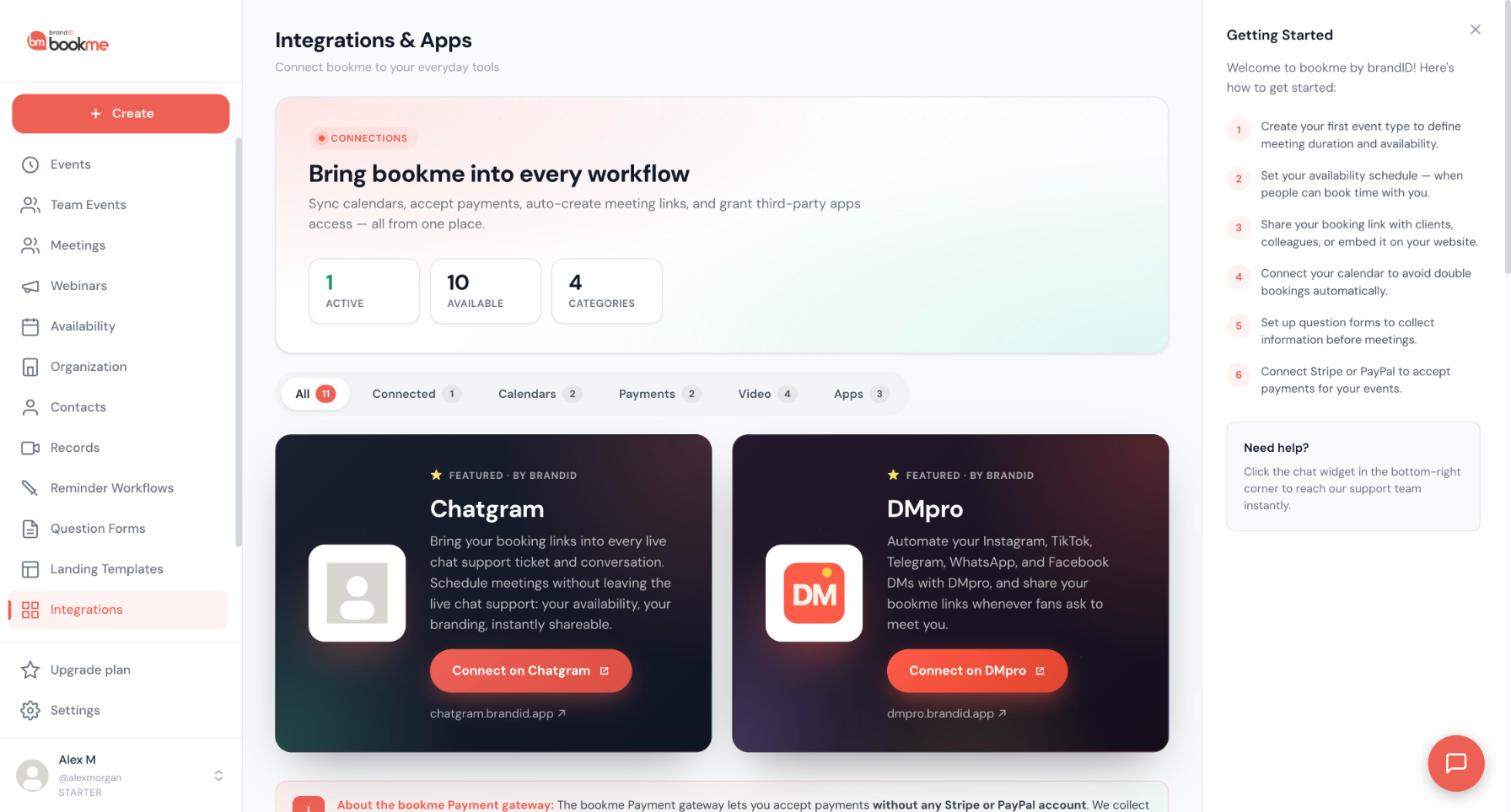
Click Integrations in the sidebar and find Google Calendar. Click Connect.
2. Approve In Google
Google asks you to choose an account and approve calendar access (bookme asks to see and edit events). Approve, and you are sent back to the dashboard with a “Google Calendar connected” message.
3. What Happens Right Away
- Your calendar’s busy time starts blocking slots on your booking page.
- Every upcoming booking you already have (as host or as co-host) is added to the calendar within a few minutes.
- New bookings are written as they happen, with the invitee, your co-hosts, and any guests as attendees. Google sends them its own invitation.
4. Several Accounts
You can connect more than one Google account; how many depends on your plan (1 connected calendar on Starter, 2 on Pro, unlimited on Elite). Each shows as its own row with a Syncing or Needs reconnect state, a Reconnect button, and a Disconnect button. Busy time is read from all of them; new events are written to the first one.
5. Google Meet
With Google Calendar connected, events that use Google Meet get a Meet link created on your calendar for every booking.
Not yet. Outlook Calendar is shown on the Integrations page as “coming soon” and cannot be connected today.
1. What Works Today
Google Calendar is the supported calendar integration. Microsoft Teams links are also not available as a meeting location.
2. What You Can Do Meanwhile
- Use a Google account for scheduling. Connect a Google Calendar to bookme and, in Outlook, subscribe to that Google calendar (or the other way round) so both show the same events.
- Rely on the .ics attachments. When no calendar is connected, every booking, reschedule, and cancellation email bookme sends you carries a calendar file that Outlook opens with one click.
3. Double-Booking Without A Connected Calendar
Without a connected calendar, bookme only knows about bookings made through bookme. Keep your Outlook appointments out of the way with date overrides, or narrow your weekly hours to the times you truly hold open.
No. bookme does not support iCloud, Apple Calendar, or CalDAV connections.
1. The Practical Setup For Apple Users
Add your Google account to the Calendar app on your iPhone and Mac. Bookings that bookme writes to Google appear in Apple Calendar automatically, and events you create in Apple Calendar on that Google account count as busy time in bookme.
2. Without Google
Use the .ics files attached to bookme’s emails (sent when no calendar is connected) to add bookings to Apple Calendar with one tap, and use date overrides to keep bookme away from times you have blocked elsewhere.
Yes, within your plan’s limit: 1 connected calendar on Starter, 2 on Pro, unlimited on Elite. Connect a work and a personal Google account and bookme keeps you free across all of them.
1. Connect Another Account
On Integrations, click Connect under Google Calendar again and pick the other account in Google’s account chooser. It appears as a second row.
2. What Each Account Contributes
- Busy time is read from the primary calendar of every connected account. A dentist appointment on your personal calendar blocks a work slot.
- New bookings are written to the first connected account only.
3. Reconnect Or Disconnect One Account
Each row has its own Reconnect (which preselects that account in Google) and Disconnect. Disconnecting one account leaves the others untouched.
4. Which One Gets The Events
The first account you connected holds your events. To make another account the writer, disconnect the accounts above it and reconnect them afterwards; bookme then re-adds your upcoming bookings to the calendar it now writes to.
New bookings are written to the primary calendar of the first Google account you connected that is currently syncing. For team events, the calendar that matters is the organiser’s.
1. Solo Events
Your first connected, syncing Google account receives the event. The invitee and any guests you add are on the invitation, so Google sends them a calendar invite as well.
2. Team Events
- The organiser of a booking (the primary host: the creator if attending, otherwise the attending host chosen for the meeting) gets the main event on their calendar with the invitee, the other hosts, and guests on it.
- Every other attending host is on that invitation, so the meeting also lands on the calendar of the email address their bookme account uses. A host whose connected calendar is a different account also gets a private copy there, with no attendees, so the invitee is not invited twice.
- A co-host without a connected calendar gets the .ics file by email instead.
3. Where The Event Goes When You Change Accounts
bookme remembers which account holds each event. Reschedules and cancellations are applied to that account. If you disconnect that account, bookme can no longer update or remove those events (they stay on the calendar); when you reconnect, missing events are re-created and cancelled ones removed.
4. Reschedules And Cancellations
- Reschedule: the existing calendar event is moved (patched in place), and Google notifies the attendees.
- Cancel: the event is removed from your calendar and attendees receive Google’s cancellation.
- “They need a new time”: the event is taken off the calendar while the invitee picks a new slot, then restored at the new time.
5. The Same Meeting Twice On One Calendar
A host’s private copy is only added where the meeting is not shown yet. bookme skips it, and removes one it added earlier, when the host’s connected calendar is the organiser’s own calendar (for example two bookme accounts connected to the same Google account), when it is the address the invitation went to, or when another host’s copy is already there. If a host declined the invitation, their copy is kept so the meeting stays on their calendar.
Two-way sync means bookme reads your calendar when it computes free times and writes to it when a booking is made, moved, or cancelled.
1. Reading
When someone opens your booking page, bookme fetches the busy periods of the primary calendar of each connected Google account for the days in view. Any busy event (regardless of its title) removes the overlapping slots, with your buffers applied around it. Events marked free in Google do not block. Busy time is cached for about two minutes, so a meeting you just added to Google can take a couple of minutes to disappear from your page.
2. Writing
Each booking creates a calendar event with the meeting link, the invitee’s details, their answers to your questions, and the attendees. Reschedules move it, cancellations remove it, guests you add are appended to the attendee list.
3. Your Own bookme Bookings
Bookings made through bookme block your other events even without a connected calendar. bookme also recognises the calendar events it wrote itself, so a booking never blocks its own slot twice (important for group events).
4. Team Events
Every required host’s calendar is read; a rotating host is only picked when both their bookme bookings and their Google Calendar are free at that time.
5. Meetings You Are A Guest On
A meeting another bookme host added you to as a guest counts as busy on your own booking pages, even if you have no calendar connected.
Almost every sync problem is one of four things: the connection needs to be reconnected, the wrong account or calendar is connected, a cache delay, or a booking that was made while the connection was broken.
1. “Needs Reconnect”
Google sometimes revokes bookme’s access (you changed your Google password, removed the app from your Google account, or the token simply expired for good). bookme then:
- Marks the row Needs reconnect on Integrations and under Settings, then Calendars.
- Shows a banner at the top of your dashboard.
- Emails you once, with a link to reconnect.
Click Reconnect; Google preselects the right account. Within minutes, every upcoming booking that is missing from the calendar is added, and bookings that were cancelled while the connection was broken are removed.
2. Wrong Account Or Calendar
bookme reads and writes the primary calendar of the account you connected. If your real appointments live in another Google account or in a secondary calendar, connect that account, or move the appointments to the primary calendar.
3. Delay
Busy time is cached for about two minutes. Wait a moment and reload the booking page.
4. A Booking Is Missing From The Calendar
If the write failed (a temporary Google error) bookme retries, and a background check runs every 30 minutes to add any booking that is still missing. If a booking is still absent after an hour, open it on the Meetings page and check the host: on a round-robin event the booking may belong to a teammate’s calendar, not yours.
5. Google Meet Links
When Google Meet cannot be created (calendar not connected or broken), bookme gives the booking a brandID Meet link instead so the meeting still has a room, and puts a plain event on the calendar when it can.
Each connected Google account has its own Reconnect and Disconnect buttons, on the Integrations page and under Settings, then Calendars.
1. Reconnect
Click Reconnect on the account’s row. Google opens with that account preselected; approve again. bookme replaces the old connection, clears the warning, and re-adds any upcoming bookings missing from that calendar.
2. Disconnect
Click Disconnect on the row and confirm. bookme stops reading busy time from that account and stops writing to it. Events already on the calendar are left as they are; bookme does not delete them.
3. Remove bookme From Google
You can also revoke access from your Google account’s security settings. bookme notices at the next sync attempt, marks the row Needs reconnect, and emails you.
4. Reconnecting After A Long Gap
Bookings made while the calendar was disconnected are added when you reconnect (up to 200 upcoming bookings at once), and bookings that were cancelled in the meantime have their old events removed.
Disconnecting changes how bookme finds free time and where events are written; the bookings themselves are untouched.
1. Existing Bookings
They stay on your Meetings page, reminders keep firing, and the events already on your Google Calendar stay there. bookme can no longer move or remove those calendar events, so if you later cancel or reschedule one, update the calendar entry by hand (or reconnect: bookme then catches up).
2. New Bookings
They are created normally. Because no calendar is connected, bookme attaches a .ics file to the confirmation emails so you and the invitee can add the meeting to any calendar.
3. Free Time
Only bookme bookings block your slots now. Use date overrides for appointments you keep elsewhere.
4. Google Meet Events
Events set to Google Meet fall back to brandID Meet links until a Google Calendar is connected again.
5. Reconnecting
All upcoming bookings are re-added to the calendar, and cancelled bookings whose events were never removed are cleaned up.
bookme reads the busy periods of the primary calendar of each connected Google account and treats every one of them as unavailable.
1. Counted As Busy
- Any event on the primary calendar that Google reports as busy, including all-day events marked busy, accepted invitations, and events you created yourself.
- Events on that calendar created by bookme (your own bookings), which are recognised so they are not double-counted.
2. Not Counted
- Events marked Free in Google.
- Events on secondary calendars or shared calendars within the account.
- Declined invitations.
- Anything on accounts you have not connected.
3. Checking What bookme Sees
There is no per-event list inside bookme. Open the booking page in a private window for the day in question: a slot missing where your schedule is open means something on the calendar (or a bookme booking, buffer, notice, cap, or holiday) is blocking it. Compare with your Google Calendar for that hour.
4. Titles And Details
bookme reads only start and end times through Google’s free/busy service. Event titles, descriptions, and attendees of your other appointments are never read or stored.
Still stuck? We’re happy to help.
Create your bookme account, see pricing, or reach out to support directly.




