
Account, Billing & Plans
Manage your account, upgrade to Pro or Elite, view invoices, cancel, enable 2FA, and manage sessions.
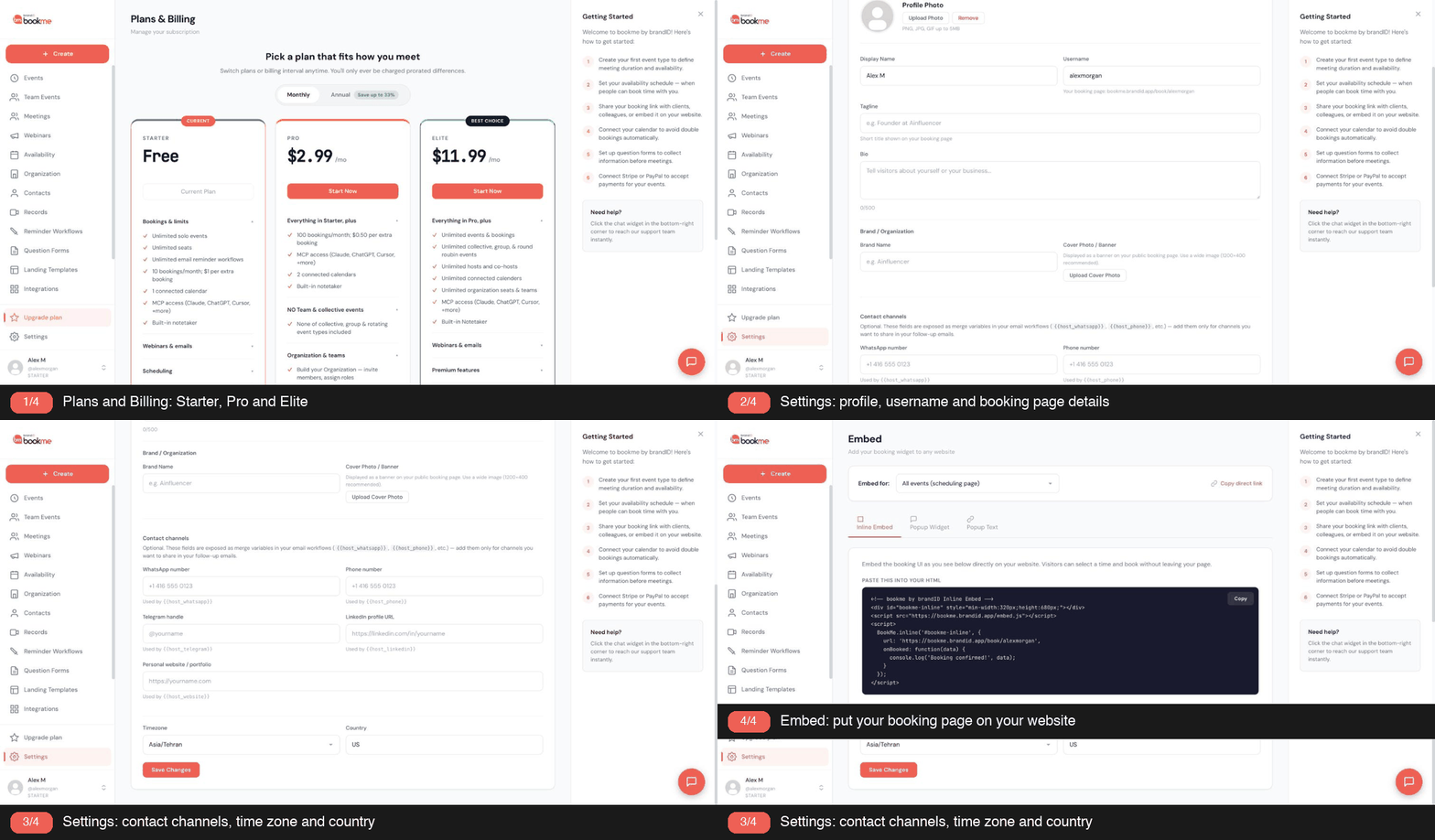
bookme has three personal plans, Starter (free), Pro, and Elite, plus an optional per-seat Organization plan for teams. The plans differ in included bookings, webinar capacity, team features, and platform fees on paid bookings; every plan has unlimited solo events.
1. Starter (Free)
- 10 bookings a month included; extra bookings are $1 each.
- Unlimited solo (1-on-1) events, customizable availability, intake question forms, all 12 landing templates, unlimited email reminder workflows.
- 1 connected calendar with Google Calendar sync, plus brandID Meet, Zoom, Google Meet, phone, and in-person locations.
- 1 webinar with up to 10 attendees and 100 invite emails a month; $0.20 per extra attendee and $1 per 1,000 extra emails.
- MCP access (Claude, ChatGPT, Cursor and more) and a built-in notetaker.
- Paid bookings with your own Stripe or PayPal, or the bookme gateway.
- Platform fee on paid bookings: 15% with your own gateway, 20% with the bookme gateway.
2. Pro
- $2.99 a month. Annual billing saves up to 33%.
- 100 bookings a month included; extra bookings are $0.50 each.
- Everything in Starter, plus 2 connected calendars and collective and round-robin team events with co-hosts.
- Organization and teams: build your Organization (invite members, assign roles) and use Managed Events (create event templates and assign them to members). Recurring paid meetings and bundle appointment sales are also listed on the Pro card.
- 2 webinars with up to 20 attendees each and 1,000 invite emails a month; $0.50 per extra attendee and $0.60 per 1,000 extra emails.
- Branding and support: custom email reminder workflows, custom cancellation policy messages, custom branding with 100 landing page designs, and priority support.
- Platform fee: 5% with your own gateway, 20% with the bookme gateway.
3. Elite
- $11.99 a month. Annual billing saves up to 33%.
- Everything in Pro, with unlimited events and bookings.
- Unlimited collective, group and round-robin events, unlimited hosts and co-hosts, unlimited connected calendars, and unlimited organization seats and teams.
- Unlimited webinars with unlimited attendees per webinar and 5,000 invite emails a month; $1 per 1,000 extra emails.
- Premium features: MCP and API access, an AI builder for email workflows, custom branding (remove bookme branding), custom cancellation policy messages, advanced admin controls, advanced member permissions, and priority and phone support.
- Platform fee: 3% with your own gateway, 20% with the bookme gateway.
4. Organization Seats (Optional, Any Plan)
$5 per seat a month, or $4 per seat a month billed yearly, charged to the organization owner on top of personal plans. Seats unlock the shared workspace: members, roles, managed event templates, and team booking pages.
5. Side By Side
| Starter | Pro | Elite | |
|---|---|---|---|
| Price | Free | $2.99/mo | $11.99/mo |
| Annual billing | Save up to 33% | Save up to 33% | Save up to 33% |
| Bookings a month | 10, then $1 each | 100, then $0.50 each | Unlimited |
| Events | Unlimited solo (1-on-1) | Unlimited solo (1-on-1) | Unlimited |
| Team events (collective, round-robin) | No | Yes | Unlimited |
| Group events | No | No | Unlimited |
| Connected calendars | 1 | 2 | Unlimited |
| Webinars | 1, 10 attendees, 100 emails/mo | 2, 20 attendees, 1,000 emails/mo | Unlimited, unlimited attendees, 5,000 emails/mo |
| Webinar extras | $0.20 per attendee, $1 per 1,000 emails | $0.50 per attendee, $0.60 per 1,000 emails | $1 per 1,000 emails |
| Branding and support | Not listed | Custom branding with 100 landing page designs, priority support | Remove bookme branding, priority and phone support |
| Fee, own Stripe or PayPal | 15% | 5% | 3% |
| Fee, bookme gateway | 20% | 20% | 20% |
Webinar extras are billed per extra attendee and per 1,000 extra emails at rates shown on the Upgrade plan page.
6. Which To Pick
- Starter for occasional bookings and trying things out; nothing is time-limited.
- Pro when you pass 10 bookings a month, take payments through your own gateway (the 5% fee instead of 15% often pays for it), need a second calendar, or want to build an Organization.
- Elite for unlimited bookings, group events, unlimited webinars and calendars, and the lowest own-gateway fee (3%).
7. Where The Numbers Live
The Upgrade plan page in your dashboard is the source of truth for prices and inclusions; the same figures appear on the pricing section of bookme.brandid.app. This article reflects them at the time of writing.
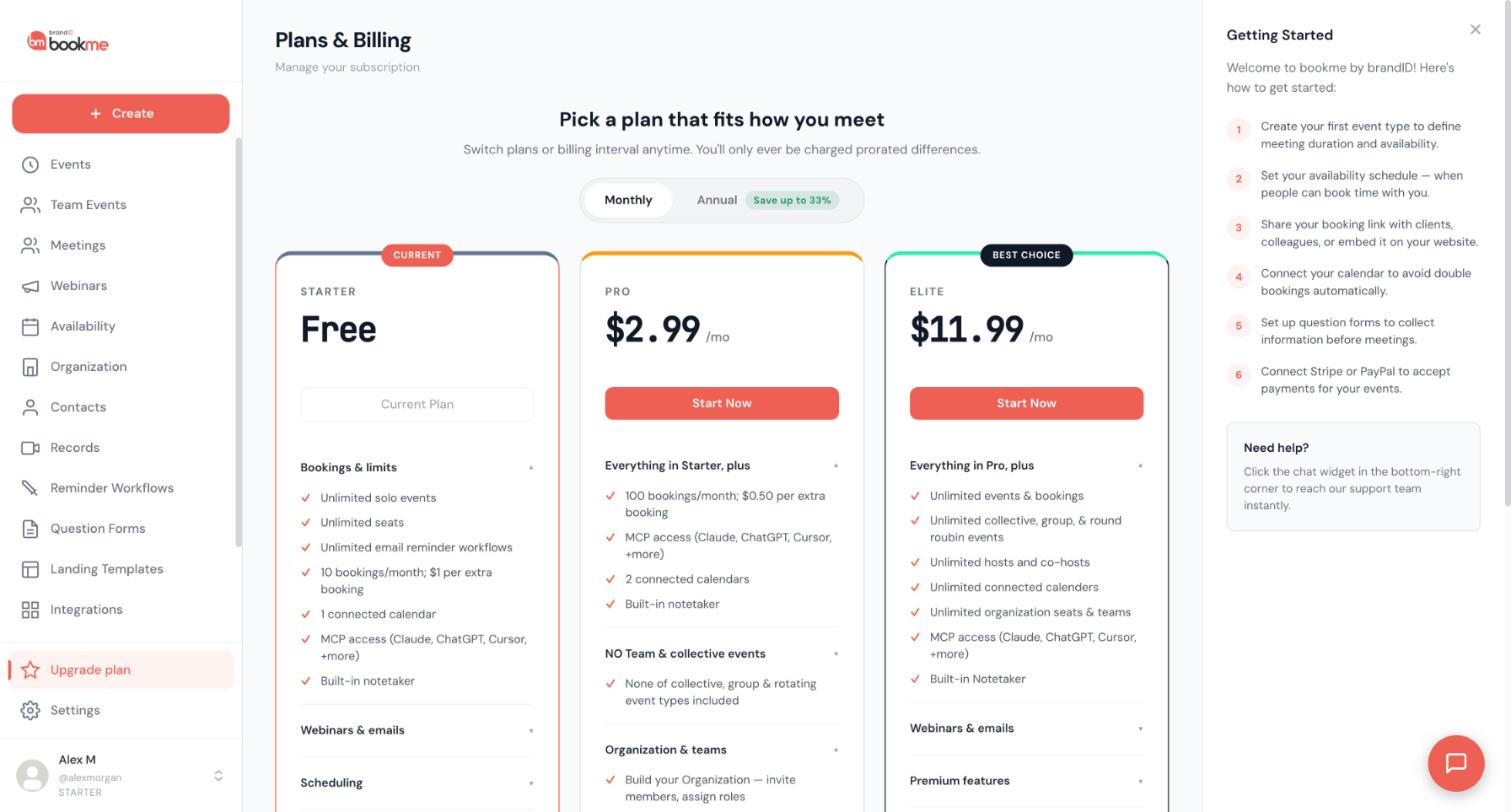
Plan changes happen on the Upgrade plan page. Your first paid plan starts with a Stripe Checkout payment; later changes between Pro, Elite, monthly, and annual are applied to your existing subscription with prorated billing, and moving back to Starter is a cancellation that takes effect at the end of the paid period.
1. Open The Page
Click Upgrade plan in the sidebar. The header shows Plans & Billing with your bookings this month, the Monthly / Annual switch, and the three plan cards. Your current card says Current Plan.
2. From Starter To A Paid Plan
Choose Monthly or Annual, then click Start Now on Pro or Elite. Stripe Checkout opens for the card payment; when it completes you return to the page and the plan is active immediately. Stripe emails the receipt.
3. Changing Between Paid Plans
If you already pay for Pro or Elite, the buttons read Upgrade to Elite, Switch to Annual, and so on. Clicking one changes your existing subscription in place:
- Upgrade (Pro to Elite): the difference for the rest of the current period is charged to your card now; the new plan applies at once.
- Downgrade (Elite to Pro): the unused part of the current period is credited to your account and used against the next invoices; the new plan applies at once.
- Monthly to annual, or annual to monthly: a new billing period starts today at the new price, with the unused days of the old period credited.
If the card on file is declined for the change, nothing changes; update the card with Manage billing and try again.
4. Back To Starter
On your current plan’s card click Cancel subscription (or Downgrade on the Starter card). A short questionnaire asks why; confirm on the last step. Your plan stays active until the end of the period you paid for, then the account becomes Starter. Until then the card shows Cancels on [date] with a Reactivate button that undoes the cancellation.
5. What Changes On Starter
Included bookings drop to 10 a month ($1 each above that), team events cannot be created or edited, webinars are limited to one, and the platform fee on paid bookings returns to the Starter rates. Nothing is deleted.
6. Failed Renewals
If a renewal charge fails, Stripe retries the card over the following days. Update the card with Manage billing on the Plans & Billing page. If the retries all fail, Stripe ends the subscription and the account moves to Starter; subscribe again when the card is sorted out.
7. Refunds
Subscription charges are not refunded automatically. Write to [email protected] with the charge date if a charge was a mistake.
Your subscription card is stored by Stripe, never by bookme. Update it through Manage billing on the Plans & Billing page, which opens Stripe’s secure billing page for your account.
1. Open Manage Billing
Click Upgrade plan in the sidebar, then Manage billing at the top right of the Plans & Billing page. The button is shown once you are on a paid plan.
2. Change The Card
On the Stripe page, under Payment method, add the new card and make it the default (you can remove the old one). Future renewals and overage charges use it. Click Return to bookme to come back.
3. What Else Is There
The same page lists your invoices and receipts for download and shows the next renewal date and amount.
4. If The Button Does Nothing
If the billing page cannot be opened, you see a message asking you to email [email protected]; the team updates the card with you or sends the invoice.
5. Overage Charges
Extra bookings above your plan’s monthly allowance are charged at the start of the following month to the same card, with an email receipt from bookme listing the count and amount.
6. Paying With PayPal
Subscriptions are card payments through Stripe. PayPal is available for your customers’ bookings (as a payout gateway), not for paying your bookme subscription.
Stripe issues the invoice and receipt for every subscription charge, and bookme emails you a notice for overage charges. Here is where to find each one.
1. Subscription Invoices And Receipts
Open Upgrade plan, then Manage billing. Stripe’s billing page lists every invoice with its date, amount, and status, each with a download link for the PDF invoice and the receipt. Stripe also emails a receipt to your account email after each successful charge.
2. Business Name And Address On Invoices
On the same Stripe page you can edit the billing name, address, and tax ID shown on future invoices. Invoices already issued keep the details they were issued with.
3. Overage Charges
When extra bookings are billed at the start of a month, bookme emails you a notice with the number of extra bookings and the amount, and the charge appears on your card statement as a brandID charge. The Stripe billing page lists it as well.
4. Organization Seats
Seat charges are separate invoices on the organization owner’s account, listed on the same Stripe page.
5. Charges For Your Own Customers’ Bookings
Payments you receive for paid bookings are not bookme charges: see the Earnings page for gross, fee, and your share per booking. Stripe or PayPal give your customers their own receipts.
6. Something Missing?
Email [email protected] with the charge date and amount; the team can re-send an invoice.
There is no pause feature, but you do not need one: cancelling your subscription keeps every piece of data, and Starter costs nothing while you are away.
1. Cancel Instead Of Pause
On the Upgrade plan page, click Cancel subscription. You keep Pro or Elite until the end of the period you paid for, then land on Starter. Event types, bookings, workflows, question forms, templates, recordings, contacts, and integrations all stay exactly as they were.
2. While You Are On Starter
Your booking page stays live with Starter limits (10 bookings a month included). If you do not want any bookings while you are away, add a date override on the Availability page that marks the whole period unavailable, or archive the events; both are reversible.
3. Coming Back
Subscribe again from the Upgrade plan page. Team events you created keep their co-hosts and resume being editable; nothing needs to be rebuilt.
4. Annual Subscriptions
An annual plan that is cancelled runs to the end of the year you paid for; the unused months are not refunded automatically. Ask [email protected] about your case if you cancel early for a long absence.
There is no self-serve trial: Starter is free without a time limit, and Pro or Elite start the moment you pay. Separately, brandID issues gift links that put an account on Pro or Elite for a fixed number of days.
1. Starter Is The Trial
Starter has no expiry and includes unlimited event types, workflows, question forms, templates, calendar sync, and paid bookings. What Pro and Elite add is volume (included bookings, webinar capacity), more connected calendars, team events, and lower own-gateway fees; group events are on Elite. Try everything on Starter and upgrade when the limits bite.
2. Gift Links
A gift link is a special link from brandID (partners, promotions, support goodwill). Opening it shows what the gift contains: the plan, how many days it lasts, and what is included. Create your account through the link, or sign in through it if you already have one, and the plan is active at once, without a card.
3. When A Gift Ends
When the gift expires you receive an email, and if you have not subscribed by then the account moves to Starter; everything you built stays. Subscribe from the Upgrade plan page at any point to keep the plan going.
4. Rules
- A gift link can be paused, limited to a number of redemptions, or given an end date; a link that can no longer be used says so when opened.
- Each link can be redeemed once per account, and an account holds one active gift at a time.
- An account with a paid subscription (active or cancelling at the period end) cannot redeem a gift; the paid plan is never overridden.
- A gift cannot be exchanged for money or credit; subscribing to a paid plan replaces it.
5. Discounts On Subscriptions
bookme does not use promo codes for subscriptions. Annual billing (save up to 33%) is the standing discount.
Cancelling a subscription keeps everything; deleting the account takes your booking page offline and deactivates the account. Know which one you mean before you click.
1. Cancelling The Subscription
- The plan runs to the end of the paid period, then the account is Starter.
- Event types, bookings (past and upcoming), workflows, question forms, templates, contacts, recordings, calendar and Zoom connections, and payment connections all stay.
- Starter limits apply from then on: 10 included bookings a month, one webinar, no new or edited team events, Starter platform fees.
- Upcoming bookings are untouched: reminders still go out and meetings still happen.
2. Deleting The Account
Settings, Danger tab, Delete account:
- Your booking page and every event link stop working immediately.
- Your subscription is cancelled at Stripe.
- You are removed from team events you co-host; their creators take over your future bookings.
- You are signed out everywhere and the email is released.
- Upcoming bookings are not cancelled or emailed automatically: cancel or reschedule them first so invitees are told and calendar entries are withdrawn, and refund paid bookings you will not deliver.
3. Side By Side
| Cancel subscription | Delete account | |
|---|---|---|
| Booking page | Live (Starter limits) | Offline |
| Event types, workflows, forms | Kept | Deactivated with the account |
| Bookings and history | Kept | Deactivated with the account |
| Recordings | Kept | Deactivated with the account |
| Payments and payouts | Earnings page stays | Refund first; no access afterwards |
| Reversible | Any time | Sign up again with the same email soon after and the account is reactivated |
4. Export Before You Delete
Export your bookings to CSV from the Meetings page and your question form answers from Question Forms first. Event types and workflows cannot be exported; copy any wording you want to keep.
5. Coming Back
After a cancellation, subscribe again from the Upgrade plan page. After a deletion, sign up with the same email: the deactivated account is reactivated with its data, as described in the deletion article. Personal data on records other people also own (for example a gift redemption) is anonymised at deletion and is not restored.
6. Privacy
The full retention policy is at bookme.brandid.app/privacy. For data requests write to [email protected].
Still stuck? We’re happy to help.
Create your bookme account, see pricing, or reach out to support directly.




