
Teams, Co-Hosts & Round-Robin
Set up team calendars, round-robin pools, collective events, and co-hosts for group scheduling.
Co-hosts are other bookme users who host a team event with you. You invite them per event: by bookme username, by email, or with a shareable invite link. The creator needs Pro or Elite; co-hosts can be on any plan.
1. From The Event Wizard
Open the team event, the Hosts step, and add people:
- By username. Search for the bookme user and add them. They get an invitation in bookme and by email, and appear as pending until they accept.
- By email. Type a full email address. If the address has a bookme account, it becomes an invitation; if not, the person is emailed and joins after signing up (the invitation is redeemed when they finish onboarding).
Invitations queued on a draft are sent when you publish.
2. From Team Events
Click Team Events in the sidebar, pick the event, and use + Invite co-host (into the required group or a rotating pool). Pending invitations are listed with a Resend option. You can also Copy co-host invite link or Copy rotating host invite link and share it; anyone who opens it signs in and joins that part of the event.
3. What The Co-Host Sees
The invitation appears on their dashboard with Accept and Decline. After accepting, the event appears under their Team Events, their bookings for it appear on their Meetings page with a Co-host chip, and they can leave the event later with Leave this event.
4. Availability Of A Co-Host
By default the co-host’s own schedule and Google Calendar decide when they are free. The creator can set a different schedule for them on this event, or lock their availability so they are always considered free.
5. Before They Accept
Inviting the first co-host turns a solo event into a team event right away: it moves to Team Events and shows as Collective event. Booking does not change until someone accepts. You still host every booking and the offered times stay the same. An invited host shows Pending with Will count toward availability, and a rotating pool whose hosts are all still invited shows starts when a host accepts instead of “1 of 2 per booking.” If the only invited person declines, or you remove them, the event goes back to a solo event.
6. Removing A Co-Host
The creator removes a co-host from Team Events; see “How To Remove A Co-Host And What Happens To Their Bookings?” below.
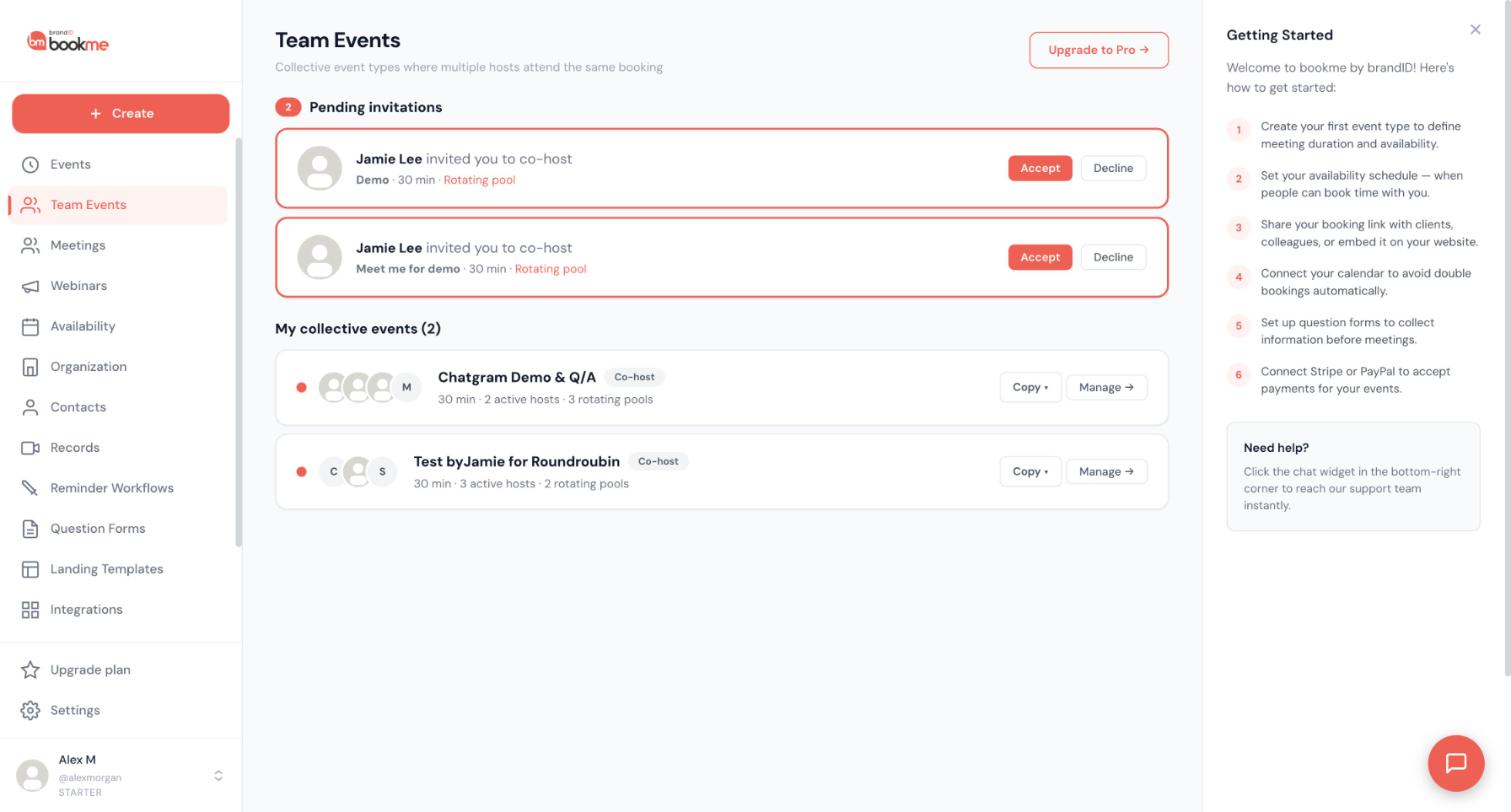
These are two team event kinds with very different semantics. Pick based on whether your meeting needs many hosts or just one.
1. Round-Robin: One Host Per Meeting, Picked From A Pool
A round-robin event books one team member per booking, picked from a pool of eligible hosts.
Use when:
- Multiple reps can handle the same kind of meeting.
- You want to spread load evenly.
- The invitee does not need a specific person; they need an available person.
Example: A sales team with 4 reps; every demo gets one of them.
2. Collective: Multiple Hosts Per Meeting
A collective event books multiple team members onto every meeting.
Use when:
- The meeting requires specific expertise from multiple people.
- The invitee needs to see all the right people at once.
- The meeting is a panel or co-sell.
Example: A demo with the AE + solutions engineer. A panel interview with 3 panelists.
3. Slot Availability Logic
- Round-robin: Slot is available if AT LEAST ONE pool member is free. Hosts share the load.
- Collective: Slot is available if ALL required hosts are free. Constraints stack.
This means collective events tend to have FEWER available slots than round-robin.
4. Assignment Logic
- Round-robin: One host is chosen in turn from the rotating pool at the moment of booking (see “How Does bookme Decide Which Round-Robin Host Gets The Next Booking?” for exactly how the rotation works).
- Collective: All required hosts are auto-added. Rotating-pool members are picked one per pool.
5. Required + Pool
An event can combine both styles: required hosts attend every meeting and one rotating host joins them. A time is only offered when all required hosts plus one pool member are free.
6. Communication
- Round-robin: Confirmation goes to invitee and the assigned host. Other pool members are not notified.
- Collective: Confirmation goes to invitee and all attending hosts.
7. Reschedule Behavior
- Round-robin: Same host stays assigned on reschedule (no re-roll). Optional setting to re-roll.
- Collective: Same hosts stay assigned on reschedule.
8. Where They Are Managed
Create a team event in the event wizard (step 1: choose “A team,” then the hosting style). Manage hosts, pools, locks, and invite links under Team Events, where Enable Collective can also turn an existing solo event into a team event, and Remove from Team Events turns it back into a solo event.
9. Calendar And Meeting
In every case one host is the organiser of a given booking: the event’s calendar entry, Zoom meeting, and Meet link live on their account, and the other attending hosts are on its invitation (plus a private calendar copy when their connected calendar is a different account).
10. When To Use Each
| Situation | Use |
|---|---|
| Sales pipeline with multiple reps | Round-robin |
| Sales call needing AE + SE | Collective |
| Support inbox with on-call rotation | Round-robin |
| Hiring interview with panel | Collective |
| Generic “ask us anything” with anyone available | Round-robin |
| Founder + lead designer demo together | Collective |
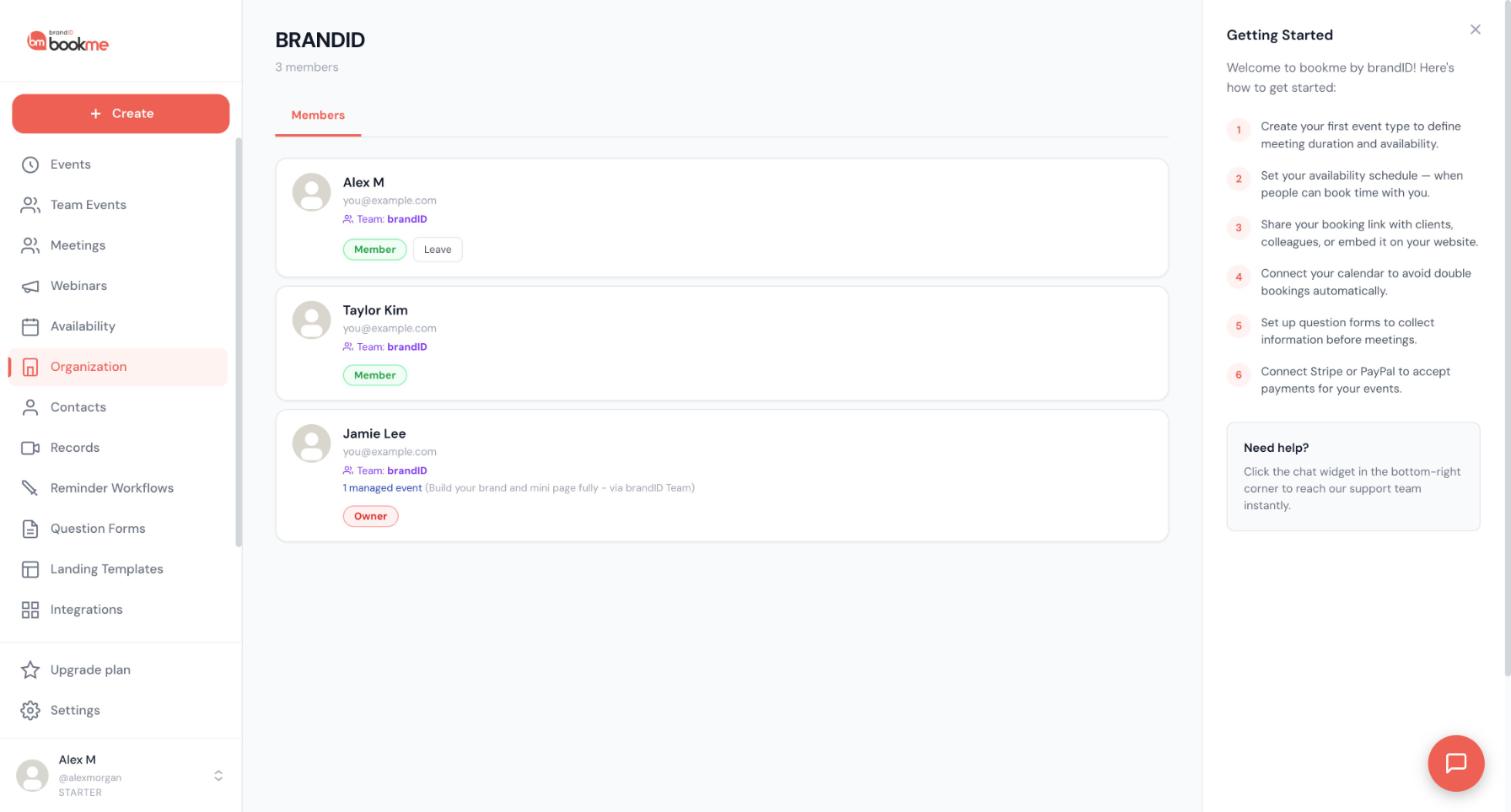
Hosts on a team event are either required (always attend) or in a rotating pool (take turns). The creator sets this per host, plus their own part in the event and per-host availability rules.
1. Open The Event Editor
Pick the team event. Click the Hosts tab, or use Team Events in the sidebar.
2. Two Pool Types
- Co-hosts (required). Every host here must be free for a slot to be offered. They all attend every meeting.
- Rotating pool. bookme picks ONE host from this pool per booking. Pools can be renamed, and a host can be moved between required and rotating (their lock and schedule are kept).
You can have multiple of each. Each rotating pool independently picks one host.
3. Add Hosts
Click + Add host in either pool. Pick from your team member list.
4. Example: Panel Interview
A 4-person panel interview:
- Required: Hiring manager (always present).
- Rotating pool 1: 3 senior engineers (one picked).
- Rotating pool 2: 2 product managers (one picked).
Result: every meeting has hiring manager + 1 engineer + 1 PM (3 attendees per meeting from a 6-person team).
5. Example: Co-Sell
A sales-plus-SE co-sell:
- Required: Assigned AE.
- Rotating pool: 4 solutions engineers (one picked).
6. Slot Computation
bookme computes available slots by:
- Intersecting every required host’s availability.
- Intersecting that with “at least one host in each rotating pool is free.”
- Subtracting busy times for every required host and the picked rotating hosts.
- Returning the remaining slots.
7. How Rotating Pool Hosts Are Chosen
Each rotating pool remembers who is next. bookme starts at the next host in the pool and takes the first one who is free at the chosen time, then advances the counter, so bookings are spread evenly across the pool over time.
8. When To Use Only Required, No Rotating
If you want every meeting to have the same set of attendees (e.g. always you + your business partner), put them both in the required pool and skip the rotating pool. Slots are only offered when both are free.
9. Your Role In This Event
As the creator, choose under Your role in this event:
- Always attends every booking (required).
- Take turns with the rotating hosts (member of the rotation).
- Backup only: you host when no rotating host is free (the default once the event has a rotating host).
- I do not host this event (co-hosts only): available once at least one co-host has accepted.
Take turns and Backup only can be chosen once the event has a rotating host (invited is enough); they take effect when that host accepts, and until then you attend every booking.
10. Per-Host Availability
For each host the creator can:
- Set a schedule that applies to this event only.
- Lock availability (the host is always considered free and does not restrict slots; they may be double-booked, so use it deliberately).
- Set a primary host who becomes the organiser of bookings (calendar and meeting links) when they attend.
11. Event-Level Lock
Locked (event locked to you) ignores every co-host’s availability: only the creator’s free time decides the offered slots.
Team booking pages belong to Organizations: a page at bookme.brandid.app/team/your-team-slug that presents several members and their events together.
1. Create The Team
Open Organization, then Teams, and create a team with a name. Add members of your organization to it. Owners and admins manage teams; members are listed on them.
2. The Team Page
The team page shows the team, its members with their photos and names, and the events each member offers, so a visitor picks the person and the event. Share bookme.brandid.app/team/your-team-slug on your website or in signatures.
3. Round-Robin Across The Team
For “book anyone on the team” without choosing a person, create a round-robin team event on one member’s account with the whole team in the rotating pool, and link to that event from the team page’s description or your website.
4. Managed Events
Owners and admins can create managed event templates and assign them to members so everyone on the team offers the same event with the same duration, location, questions, and (locked) settings, each under their own name and calendar.
5. Without An Organization
Solo accounts can list several hosts on one page only through a team event (collective or round-robin), which is shown on the creator’s own booking page.
Round-robin assignment happens at the moment of booking, from a rotation counter per pool, skipping hosts who are busy. Here is exactly how that choice is made today.
1. The Rotation
Each pool remembers who is next. When a booking comes in, bookme starts at the next host and takes the first one who is free at that time. The counter then advances, so bookings are spread evenly over time.
2. Who Counts As Free
A host is free when their bookme bookings (as host, co-host, or guest) do not overlap the time, and their connected Google Calendar shows no busy event then; their weekly hours, date overrides, buffers, and limits all apply. Hosts whose availability the creator has locked are always pickable.
3. Pending Hosts
Hosts who have not accepted their invitation are not in the rotation.
4. The Creator
Depending on Your role in this event: as a rotating member you are part of the rotation; as backup you get the booking only when nobody in the pool is free; as required you attend every booking alongside the rotating pick; as “I do not host” you are never assigned.
5. What The Invitee Sees
They pick a time from the pool’s combined free time. The confirmation names the host who was assigned, and the meeting link and calendar event come from that host’s account.
6. Fairness Over Time
Because busy hosts are skipped, a host who is often unavailable gets fewer bookings. Locking a host’s availability puts them back into full rotation at the price of possible double-bookings.
7. Manual Override
You can manually assign a booking to a specific host:
- Open the booking after creation.
- Click Reassign.
- Pick the new host.
The original host’s calendar is freed; the new host’s calendar gets the event.
8. Workload Caps
Set per-host caps on round-robin events:
- Max bookings per day per host.
- Max bookings per week per host.
Once a host hits their cap, they are skipped in routing for the rest of the period.
9. Routing Trail
Each booking shows in its detail panel:
- How the assignment was made.
- Why the assigned host was picked.
- Which other hosts were considered but skipped (and why).
Helpful for debugging “why did Rep B get this booking and not Rep A?”
Removing a co-host takes them off the event and off its future bookings. bookme keeps every booking alive by putting the creator in where needed.
1. Remove
Under Team Events, open the event and click Remove on the host. The same happens when a co-host clicks Leave this event, when their account is deleted, or when the creator turns the event back into a solo event.
2. Future Bookings
For each upcoming booking the removed host was attending:
- They are taken off the attendee list, their private calendar copy is deleted, and their reminders are cancelled.
- If they were the rotating host or the only host left, the creator steps in: the creator is added, emailed, and gets the calendar entry.
- If they were the organiser of the booking (its calendar event and meeting link live on their account), they are kept on that booking so nothing breaks; reassign it by rescheduling if needed.
3. Past Bookings
Unchanged. They stay on everyone’s Meetings page as history.
4. Re-Adding
Invite them again from Team Events. They rejoin future bookings only when new bookings are made.
Team events are included in the creator’s Pro or Elite plan. Organizations are billed per seat.
1. Team Events
- The creator of a collective or round-robin event needs Pro or Elite.
- Co-hosts can be on any plan, including Starter, and pay nothing extra.
- Bookings of a team event count towards the creator’s monthly bookings (Pro: 100 included, then $0.50 each; Elite: unlimited).
- Payments for paid team events go to the creator’s gateway.
2. Organization Seats
- $5 per seat a month, or $4 per seat a month billed yearly ($48 per seat a year), on top of each person’s own plan.
- The owner picks the number of seats; every member needs one. Seats can be increased or reduced from the Organization page’s Billing section.
- The organization subscription is separate from personal Pro or Elite subscriptions and is charged to the owner.
3. What A Seat Unlocks
Membership in the organization, team booking pages, managed event templates, organization roles and statistics.
4. Cancelling
The owner can cancel the organization subscription (it runs to the end of the paid period) and reactivate it before then. Members keep their personal accounts either way.
That is how a collective event works. A time is offered only when every required host is free, so each extra required host can only remove times, and can take availability to zero.
In a round-robin event the opposite is true: adding a host adds availability, because a time is offered when at least one host is free.
How To Fix A Sparse Collective Event
- Move hosts who do not need to attend every meeting into a rotating pool.
- Widen the shared weekly hours of the required hosts.
- Check date overrides and long calendar events that block the overlap.
- Review time zones. Hosts in different zones have a narrow overlap.
See the worked example in How Scheduling Works.
Removing a host from an event type does not automatically clean up that host’s existing bookings. Handle them first, so no booking is left listing someone who is no longer part of the event.
- Collective events. Look at every future booking that includes the host. Keep it (the remaining hosts attend), reschedule it, or cancel it.
- Round-robin events. Reassign the host’s future bookings to another pool member, or cancel them so the invitee can rebook.
- Calendar invites. After changing hosts on a booking, check the calendar invite so the attendee list matches.
The removal steps are in the article on removing a co-host and what happens to their bookings, above.
bookme checks the time again when each invitee confirms. The first confirmation gets the slot. In a round-robin event, the second invitee can still be assigned another host who is free at that time. If nobody is free, the invitee is asked to choose a different time.
Still stuck? We’re happy to help.
Create your bookme account, see pricing, or reach out to support directly.




