
Your Booking Page
Customize the look and feel of the page your invitees see. Template, brand name, photo, layout.
Your booking page is the public face of your bookme account. bookme ships with 12 landing page templates so you can match your brand without touching CSS, and every template is available on every plan.
1. Open Landing Templates
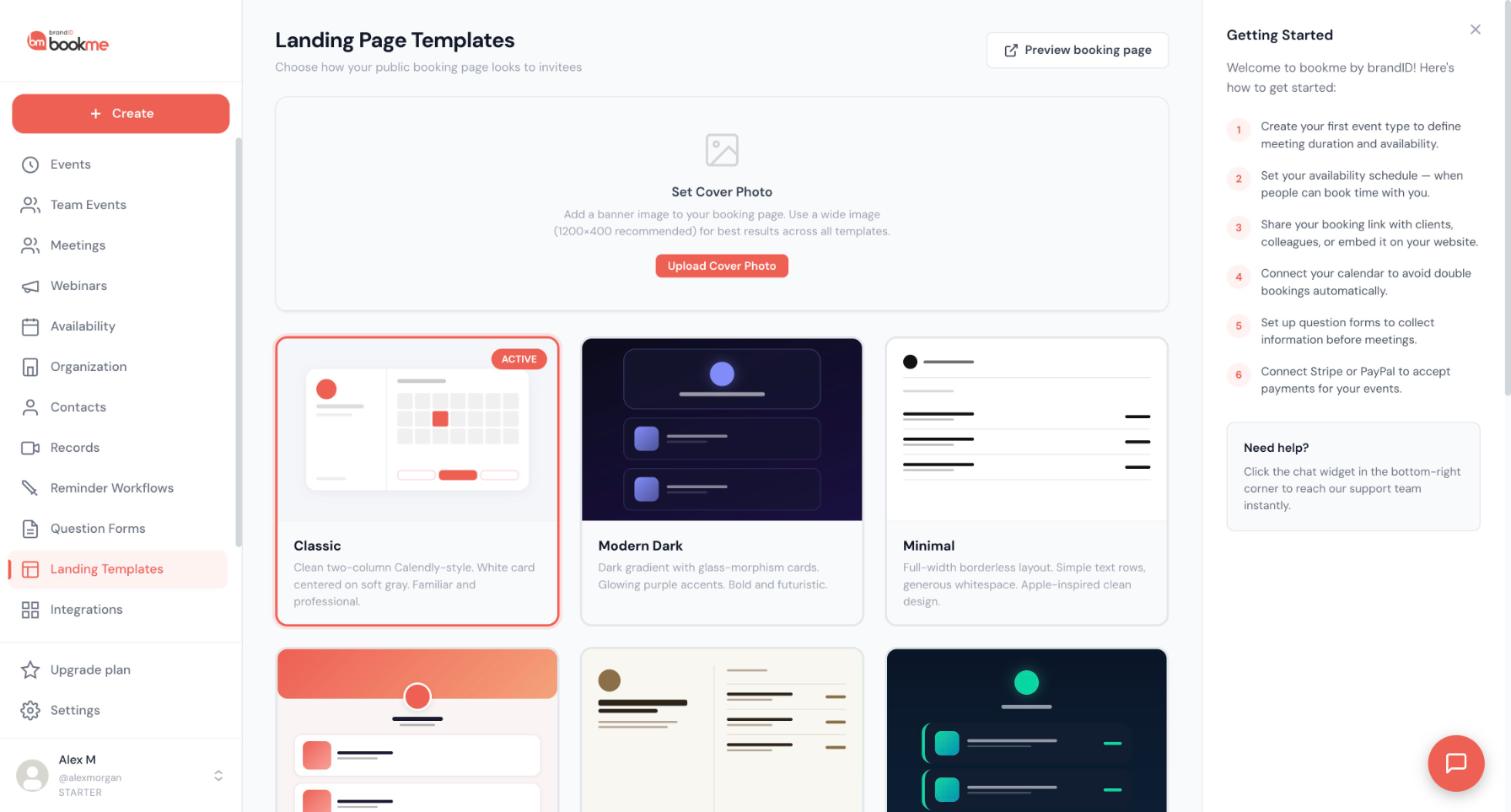
Click Landing Templates in the sidebar. Each card shows a preview, a short description, and the template that is currently active.
2. The 12 Templates
- Classic. Clean two-column layout, white card on soft gray. Familiar and professional.
- Modern Dark. Dark gradient with glass cards and purple accents. Bold and futuristic.
- Minimal. Full-width, borderless rows with generous whitespace.
- Showcase. Big hero cover with an overlapping avatar and horizontal service cards with thumbnails.
- Elegant. Serif typography, warm ivory tones, editorial split layout. Popular with consultants.
- Neon. Dark navy with cyan and teal gradient accents and glowing borders. For bold brands.
- Corporate. Navy header bar with grid event cards. Enterprise-clean.
- Nature. Sage green and cream with organic rounded shapes. Wellness and coaching.
- Bento Grid. Bento box layout with events as visual grid cards and colorful stat boxes.
- Glass. Frosted glass cards on a pastel gradient with soft purple accents.
- Neo Brutal. Thick black borders, offset shadows, bold color blocks. Raw and playful.
- Timeline. Vertical timeline with connected dots and a gradient hero header.
3. Apply A Template
Click the template you want. It becomes active immediately for your booking page (bookme.brandid.app/book/your-username) and for every event page under it. Nothing else changes: your events, questions, and availability are the same on every template.
4. What The Template Uses
Templates pull from your profile: display name, tagline, bio, profile photo, brand name, and the cover photo / banner. Templates with a hero area (Showcase, Timeline, Nature, Modern Dark) look best with a cover photo, which you can set from the Set Cover Photo button on this page or under Settings, then Profile. Event cards use each event’s own colour and cover image.
5. Embedded Pages
When your page is embedded on your own website, the template still applies, but the outer background and padding are stripped so the widget blends into your site.
Branding on the booking page comes from three profile fields: brand name, cover photo / banner, and tagline. Colour comes from the template you pick and the colour of each event type.
1. Open Settings, Then Profile
Everything in this article lives under Settings, then the Profile tab.
2. Brand Name
Under Brand / Organization, type your Brand Name (for example “Acme Coaching”). Templates show it alongside or instead of your display name, depending on the layout.
3. Cover Photo / Banner
Next to the brand name, upload a Cover Photo / Banner. This is the wide image at the top of hero-style templates and the background of some card layouts. Use a landscape image; it is also uploaded with a crop step so you can pick the visible area. You can set the same image from the Landing Templates page with Set Cover Photo.
4. Tagline
The Tagline (up to 120 characters) sits under your name on every template. Keep it to one line: what you do and for whom (“Fractional CFO for SaaS founders”).
5. Colours
There is no single brand colour setting. Colour on the page comes from:
- The template you pick (each has its own palette).
- Each event type’s colour, chosen in the event wizard, which tints that event’s card and shows up as the dot next to the event name in your Meetings list.
6. Save
Click Save changes. Your booking page reflects the new branding at once.
Your booking page is live as soon as you have one active event type, so “preview” simply means opening it the way an invitee would.
1. Open Your Page
Your page is bookme.brandid.app/book/your-username. The URL is shown under the Username field in Settings, then Profile, and every event card on the Events page has a copy-link action.
2. Use A Private Window
Open the link in a private or incognito window. That way you see it exactly as a visitor does, without your dashboard session.
3. Preview A Single Event
Each event has its own page: bookme.brandid.app/book/your-username/event-slug. The event wizard shows a live preview card with this link on every step, and the “is live” screen after publishing opens it in one click.
4. Work On A Page Without Showing It
If you are building an event you do not want visible yet, leave it as a draft in the wizard (close the wizard without publishing). Drafts are listed under the Drafts tab on the Events page, never appear on your public page, and their links do not work until you publish.
5. Test A Booking
Book a slot yourself. The booking appears on your Meetings page with a “You booked” chip, in your calendar, and in your inbox, so you can check every email your invitees will receive. Cancel it afterwards from Meetings.
A face, a short bio, and a way to reach you make a booking page feel like a person rather than a form. All three live under Settings, then Profile.
1. Profile Photo
Click Upload Photo, pick an image (up to 5 MB), and crop it. A square crop with your face centred renders best in the round avatar most templates use. Remove clears it, in which case templates show your initials.
2. Bio
The Bio field takes up to 500 characters. Say what you do, who you help, and what happens on the call. Two or three sentences is plenty.
3. Contact Links
The Contact channels block (WhatsApp, phone, Telegram, LinkedIn, website) is used by your workflow emails through merge variables such as {{host_linkedin}}. Fill in the ones you are happy to share with people who book you.
4. Where Each Appears
- Photo and bio: on your booking page and event pages, in the layout the template defines.
- Display name: on the page and in every email invitees receive.
- Contact channels: only where you put their merge variables in Reminder Workflows.
Your booking page lists every live event type. You control what is shown by archiving or keeping events as drafts; a drag-and-drop order is not available yet.
1. Hide An Event From The Page
Open Events, open the menu on the event card, and choose Archive. The event moves to the Archived tab, disappears from your booking page, and its direct link stops working. Existing bookings are not affected. Restore it from the Archived tab when you need it again.
2. Keep A New Event Private While You Build It
Events you create in the wizard are drafts until you click Publish. Drafts are never shown publicly.
3. Order Of Events
Events are listed in the order they were created, oldest first. There is no manual reorder yet. If the order matters to you, the practical workaround is to Duplicate an event (which creates it fresh at the end of the list) and archive the original.
4. Sharing One Event Without Showing The Others
Share the event’s own link (bookme.brandid.app/book/your-username/event-slug) or embed just that event. People who follow it never see your other events unless they click back to your page.
5. Delete An Event
From the Archived tab you can delete archived events for good. Past bookings of a deleted event keep their records on your Meetings page.
No. Every bookme booking page is served from bookme.brandid.app, on every plan. Here is what you can do instead.
1. Embed On Your Own Site
The Embed page generates code for three options:
- Inline embed drops the full booking page into a section of your website.
- Popup widget adds a floating “Book a meeting” button that opens the page in an overlay.
- Popup text turns any link on your site into a popup trigger.
Visitors stay on your domain the whole time; only the booking widget is loaded from bookme.
2. Use A Short Link Or Redirect
Set up a redirect on your domain (for example yourbrand.com/book) that forwards to bookme.brandid.app/book/your-username. Most website builders and DNS providers offer this in minutes, and you get a memorable link on business cards.
3. Branding That Is Yours
Even on the bookme domain your page carries your name, photo, brand name, banner, tagline, template, and event colours. The only bookme element visitors see is a small “Powered by bookme by brandID” footer.
There is no light/dark toggle. Dark and light are a property of the template you choose, and the page does not follow the visitor’s system setting.
1. Dark Templates
Pick one of these under Landing Templates for a dark page:
- Modern Dark (dark gradient, glass cards, purple accents).
- Neon (dark navy with cyan and teal accents).
2. Light Templates
Classic, Minimal, Showcase, Elegant, Corporate, Nature, Bento Grid, Glass, Neo Brutal, and Timeline are light.
3. Dashboard
The dashboard itself is light only.
The booking page interface (buttons, labels, the form) is in English only. What you write is yours, so you can present an event in any language.
1. What You Control
- Your display name, tagline, bio, brand name, and every event name and description can be in any language.
- Question form labels and options are free text, so you can ask in your invitees’ language.
- Workflow emails (subjects and bodies) are fully editable, so reminders and follow-ups can be written in any language.
2. What Stays In English
The template chrome: “Select a date”, the time-zone picker, the Name and Email labels, the Confirm button, and the confirmation screen. bookme’s own transactional emails (booking confirmation, cancellation, reschedule notices) are in English, with your event names and text inside them.
3. Dates And Times
Dates on the booking page are shown in the visitor’s time zone. Weekday and month names follow the page language (English).
4. A Practical Setup For Two Languages
Create two event types, one per language (“Consultation (EN)” and “Consultation (FR)”), each with its own description and question form, and share the matching link to each audience. Both can use the same schedule.
An event type is in one of three states: live (bookable and listed on your page), draft (being built, never public), or archived (hidden and not bookable, kept for later). There is no separate “unlisted” state.
1. Live
A published event. It appears on your booking page, its direct link works, and it can be booked. This is the state after you click Publish in the wizard.
2. Draft
An event you started in the wizard and have not published. Drafts:
- Are listed under the Drafts tab on the Events page.
- Never appear on your booking page; their link shows a not-found page.
- Keep queued co-host invitations, which are sent the moment you publish.
- Are saved step by step, so you can close the wizard and come back.
3. Archived
A live event you chose to Archive from its card menu. Archived events:
- Disappear from your page and their links stop working.
- Keep every past booking on your Meetings page.
- Can be restored to live at any time from the Archived tab, or deleted for good.
4. “Unlisted” Events
bookme does not have hidden-but-bookable events. The closest approach is to give an event a name that signals it is by invitation (“Partner call, by invitation”) and share only its direct link; it will still be visible on your page to anyone who scrolls.
5. Team Events
Team events (collective and round-robin) follow the same states and are listed on the creator’s booking page. Co-hosts do not get the event on their own pages.
Still stuck? We’re happy to help.
Create your bookme account, see pricing, or reach out to support directly.




